How to get the area of a rectangle
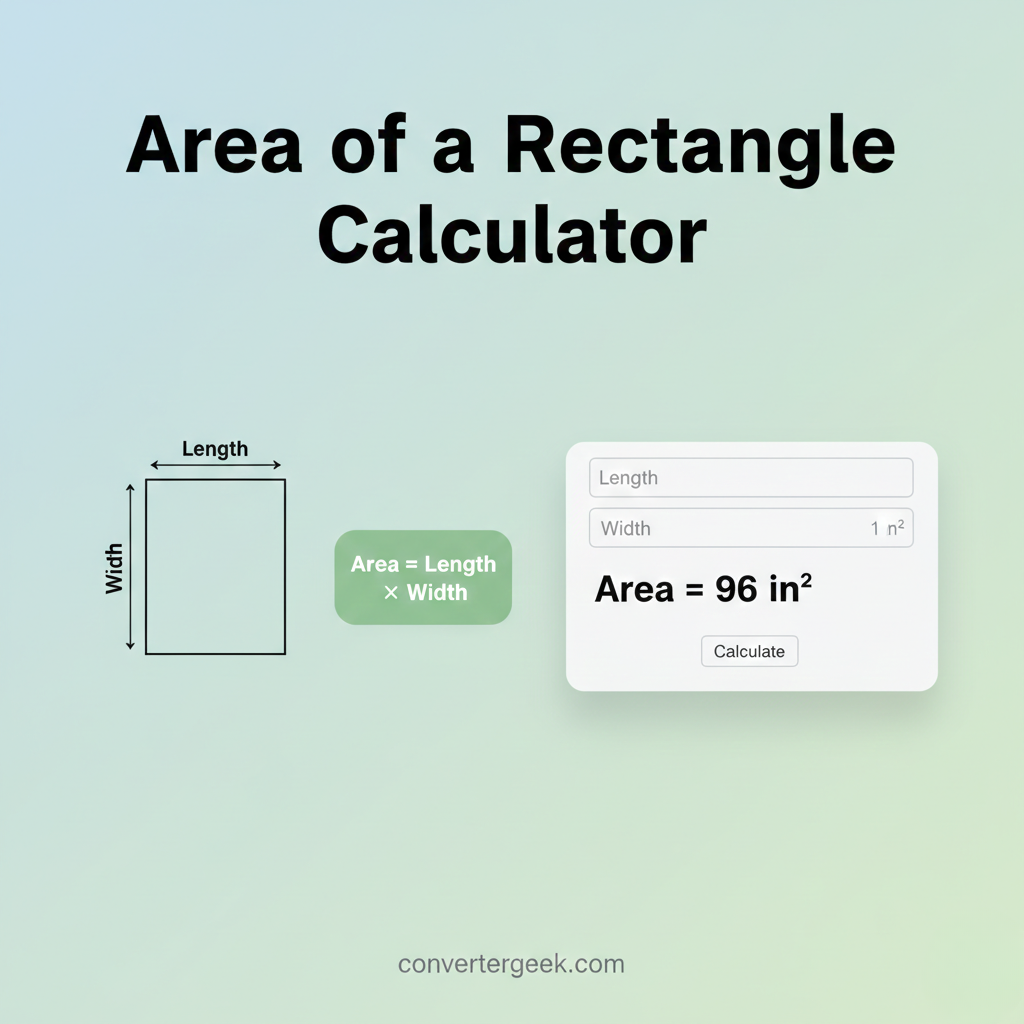
Area of a Rectangle Calculator
Enter length and width, select unit, and get the area instantly.
Area of a Rectangle Calculator (Length × Width)
The area of a rectangle is the amount of flat surface inside a rectangle. People use it to estimate coverage (like rugs, posters, panels), compare sizes, and check geometry work without over complicating the math.
This area of a rectangle calculator takes two inputs:
- Length (one side)
- Width (the perpendicular side)
…and returns one output:
- Area in square units (like in², ft², cm², m²)
If you only remember one thing, remember this: area is multiplication, not addition. That single rule prevents the most common mistake (mixing up area with perimeter).
What you’ll get on this page
- A quick definition you can use in homework, planning, or design.
- A clear area of rectangle formula explanation (no jargon).
- A unit-safe workflow so you don’t accidentally mix inches and feet.
- Tables to cross-check your result in seconds.
Mini voice Q&A (fast answers)
- Q: “Hey Google, what’s the area of a rectangle?”
A: Multiply length by width, then write the result in square units. - Q: “Does the area of a rectangle depend on which side I call length?”
A: No. Swapping the two sides doesn’t change area because multiplication works both ways.
Table of Contents
1. What This Calculator Solves (and when to use it)
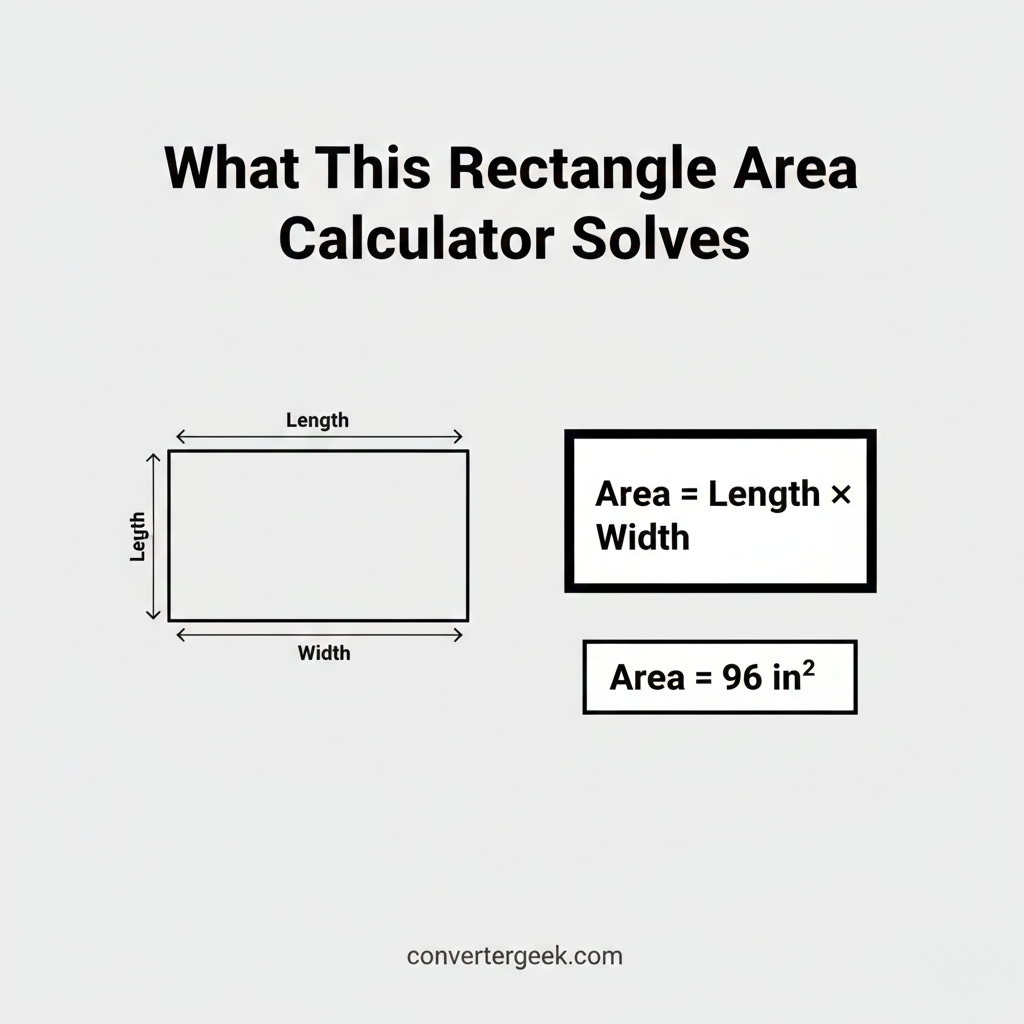
This calculator solves one simple task: it finds the area of a rectangle using length and width. If you can measure two perpendicular sides, the area of the rectangle is a straightforward multiplication—useful for planning coverage, comparing sizes, and checking geometry work.
What it calculates (snippet-ready)
- Input 1: Length (one perpendicular side)
- Input 2: Width (the other perpendicular side)
- Output: Area in units for area (square units such as in², ft², cm², m²)
Quick Answer (rule):
Area of a rectangle = length times width (both in the same unit).
When this is the right tool
Use the area of a rectangle calculator when your goal is:
- Coverage planning: estimate surface coverage for rugs, mats, posters, panels, sheets, or tiles (basic estimate).
- Comparing rectangles: decide which option covers more surface area.
- Homework checking: confirm the area of rectangle formula matches your steps.
- Layout sizing: banners, cards, UI blocks, print regions, design placeholders.
- Splitting spaces: break an irregular space into rectangles, then add each area of a rectangle result.
Micro Q&A (voice-friendly):
Q: “Do I need length and width?”
A: Yes. Those two perpendicular sides are the standard inputs.
When you should NOT use it
This area of a rectangle tool is not ideal when:
- You need border length (frames, trim, fencing) → use perimeter of a rectangle instead.
- The shape isn’t a rectangle (curves, slanted sides, triangles, circles).
- You only know the diagonal and no side length.
- Your measurements are mixed units and you haven’t converted (like inches + feet).
Micro Q&A:
Q: “Is length + breadth the area?”
A: No. That’s perimeter thinking. Area is length times width.
Two quick sanity checks (prevents wrong results)
- Right angle check: corners should be 90° for a true rectangle.
- Unit check: both values must be in the same unit before multiplying.
Voice-friendly answers (fast)
- Q: “Hey Google, what’s the area of a rectangle?”
A: Multiply length by width and write the result in square units. - Q: “Can I swap length and width?”
A: Yes. The area of the rectangle stays the same.
2. Rectangle Basics That Actually Matter
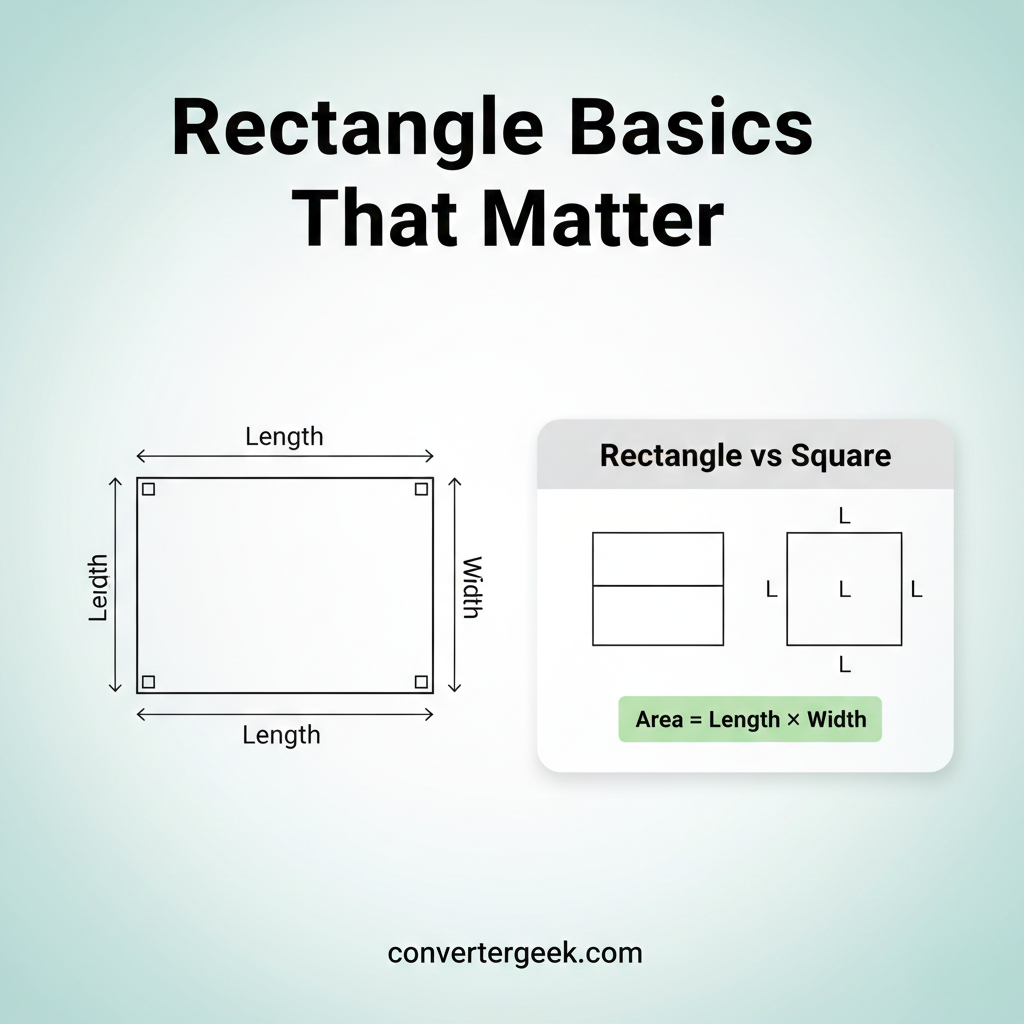
A rectangle is a shape with four right angles (90°). For area, that single fact is the whole game: it guarantees the two sides you multiply are perpendicular, which is why the area of a rectangle is simply length times width.
What a rectangle is (plain-English definition)
A rectangle is a four-sided shape where:
- Each corner is a right angle (90°).
- Opposite sides are equal in length.
- The shape looks like a “stretched square.”
If you searched what is a rectangle, here’s the practical version:
A rectangle is any flat shape where you can measure length and width at a right angle and multiply them to get area.
Length vs width (it’s not about “longest”)
For area, “length” and “width” are just names for the two perpendicular sides.
- You can call either side “length.”
- You can call the other side “width.”
- The area of the rectangle won’t change if you swap them.
Micro Q&A (voice-friendly):
Q: “Do I have to use the longest side as length?”
A: No. Area stays the same either way because multiplication is symmetric.
Square and rectangle (what’s the difference?)
A square is a special rectangle:
- It still has four right angles.
- But all sides are equal.
So when you’re comparing square and rectangle:
- Rectangle: sides can be different.
- Square: sides are the same.
The key takeaway: the area of a rectangle rule works for squares too. (That’s why area of square is still “side × side.”)
Area vs perimeter (don’t mix these)
This is the #1 confusion point.
- Area = inside surface (coverage).
- Perimeter = outside border (outline).
If someone writes length + breadth, they’re thinking about border-type math. For rectangle area, you want length times width.
Micro Q&A:
Q: “Is area and perimeter the same thing?”
A: No. Area is surface coverage; perimeter is boundary length.
What “height of the rectangle” usually means
In many worksheets, “height of the rectangle” is just the perpendicular side—often the same thing you’d call width.
So if you see:
- width of the rectangle
- height of the rectangle
…they often mean the same role in the formula: the side that’s perpendicular to the other side.
A quick reality check: is it really a rectangle?
Before trusting the area of a rectangle calculator, check:
- Are the corners close to 90°?
- Are the opposite sides parallel?
- Are you measuring straight edges (not curved)?
If the edges are slanted or corners aren’t right angles, you may need a different shape method.
Micro Q&A:
Q: “What if my shape looks like a rectangle but corners aren’t 90°?”
A: Then it may not be a rectangle. Your area result becomes an estimate unless you measure correctly.
3. Inputs & Outputs (Length, Width, Area)
To calculate the area of a rectangle, you only need two measurements—Length and Width—and the output is the area in square units. The most important rule is that both inputs must be in the same unit before you multiply.
What you enter (inputs)
Length
Length is one perpendicular side of the rectangle. It can be the longer side, but it doesn’t have to be.
Good examples:
- 12 inches
- 4.5 feet
- 2.3 meters
Width
Width is the other perpendicular side (at a right angle to length).
Good examples:
- 8 inches
- 3 feet
- 1.2 meters
Micro Q&A (voice-friendly):
Q: “Can I enter the diagonal as width?”
A: No. Use the perpendicular side, not the diagonal.
What you get (output)
Area
Area is the inside surface size of the rectangle.
- If you input inches → output is in in² (square inches)
- If you input feet → output is in ft² (square feet)
- If you input centimeters → output is in cm²
- If you input meters → output is in m²
This is why people search units for area—area is always squared.
Micro Q&A:
Q: “Why does the unit become squared?”
A: Because you’re multiplying a length unit by a length unit (e.g., ft × ft = ft²).
The “unit mismatch” problem (most common error)
If you multiply values that use different units, the result is not meaningful.
Example mistake:
- Length = 6 ft
- Width = 10 in
You must convert first (either convert inches to feet or feet to inches), then calculate the area of a rectangle.
Practical shortcut:
- If your final answer should be in ft² → convert everything to feet first.
- If your final answer should be in in² → convert everything to inches first.
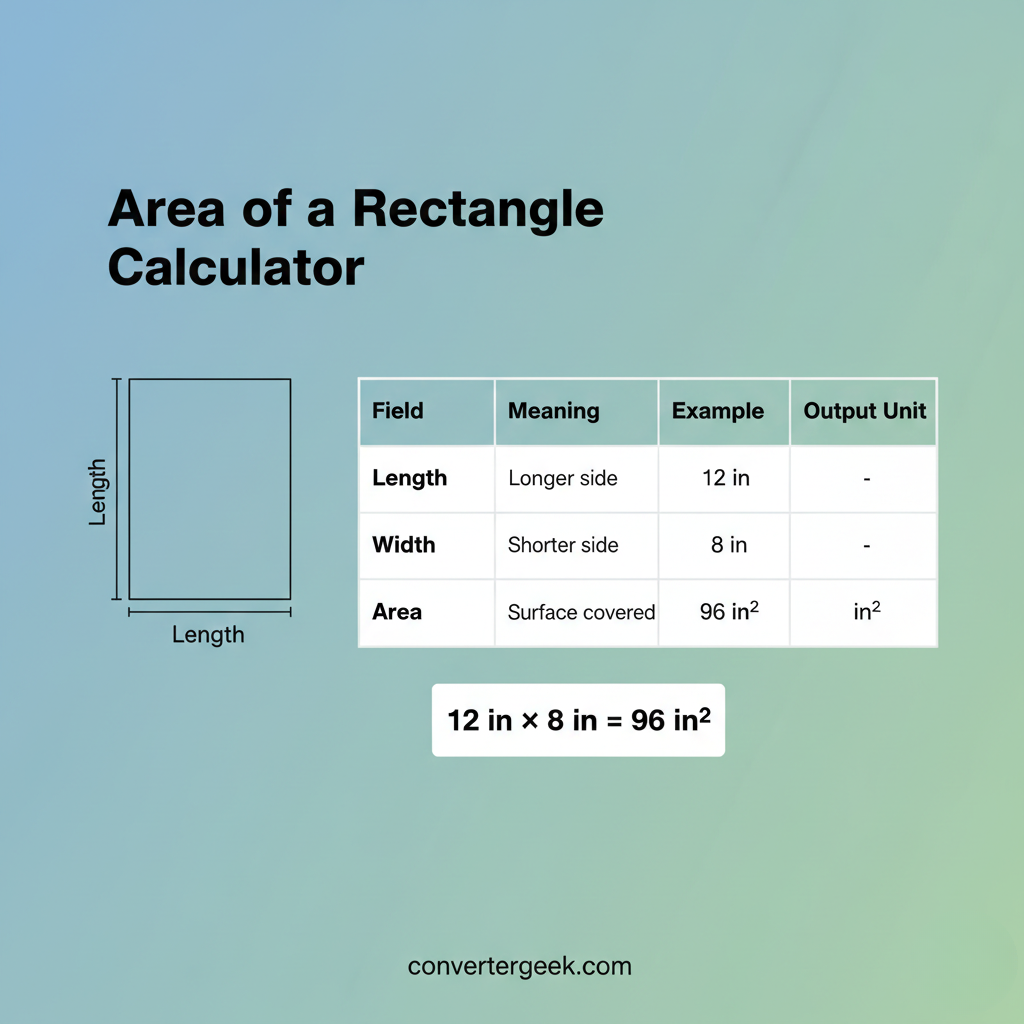
Inputs & Outputs Table (Area of a Rectangle Calculator)
Enter length and width, and the tool calculates rectangle area using Length × Width in the correct square units.
| Field | What it means | Example value | What the tool returns |
|---|---|---|---|
| Length | One perpendicular side | 12 in | Used in Length × Width |
| Width | Other perpendicular side | 8 in | Used in Length × Width |
| Area | Surface inside rectangle | — | 96 in² |
| Units for area | Output unit type | in → in² | Square units |
Quick validation (before you trust the output)
Use these quick checks:
- ✅ Both sides are perpendicular (rectangle corner).
- ✅ Both values use the same unit.
- ✅ Output is labeled in square units (ft², in², cm², m²).
If all three are true, your area of a rectangle calculator result is usually ready for planning or learning.
4. What Happens Behind the Button
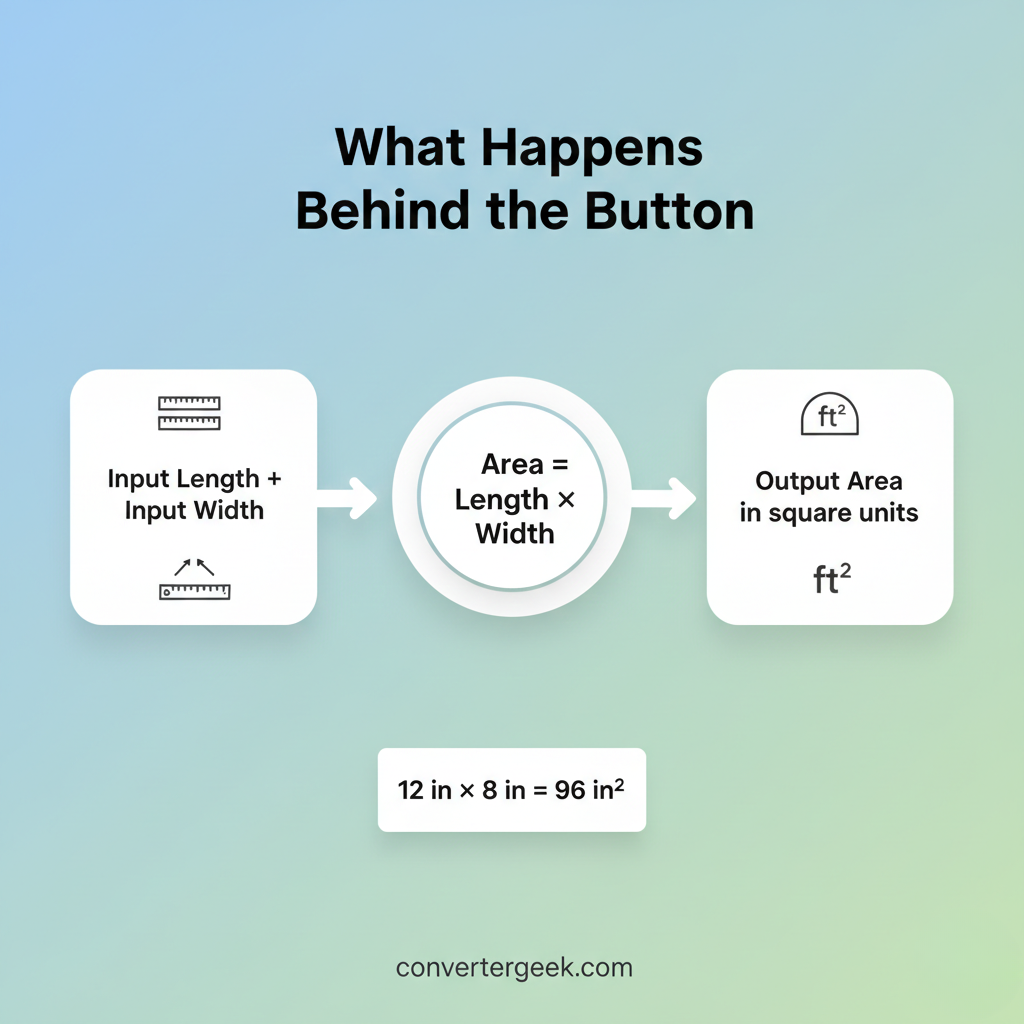
Behind the button, the calculator follows the area of a rectangle rule in the simplest possible way: it multiplies length times width (after unit alignment) and formats the result in square units. There’s no trick—just clean geometry.
The core logic (high-level, easy to verify)
To compute the area of the rectangle, the calculator:
- Reads Length and Width exactly as entered.
- Checks units (or assumes you’ve entered both in the same unit).
- Applies the area of rectangle formula:
Area = Length × Width - Outputs the area with squared units (in², ft², cm², m²).
If you’ve seen worksheets using × b, that’s the same idea: side “a” multiplied by side “b.”
Micro Q&A (voice-friendly):
Q: “Does it matter which side I call length?”
A: No. Swapping length and width doesn’t change the area.
Why the unit becomes squared
This is the key concept that makes results look “different” than your inputs:
- inches × inches = square inches (in²)
- feet × feet = square feet (ft²)
So the calculator’s output is not “bigger” just because it’s squared—it’s a different type of unit: a surface unit.
Micro Q&A:
Q: “Why do I get in² instead of inches?”
A: Because you’re calculating surface area, not a single length.
What the calculator does NOT do automatically (important)
To keep results predictable and avoid hidden assumptions, this calculator typically does not guess or auto-correct:
- It won’t assume inches should convert to feet.
- It won’t guess diagonal values.
- It won’t “fix” a non-rectangle shape.
That’s why the best workflow is: convert first, then multiply.
A quick example you can mentally check
If Length = 12 in and Width = 8 in:
- 12 × 8 = 96
- unit: in × in = in²
- Output: 96 in²
That’s the area of a rectangle in square inches.
5. How to Use the Area of a Rectangle Calculator
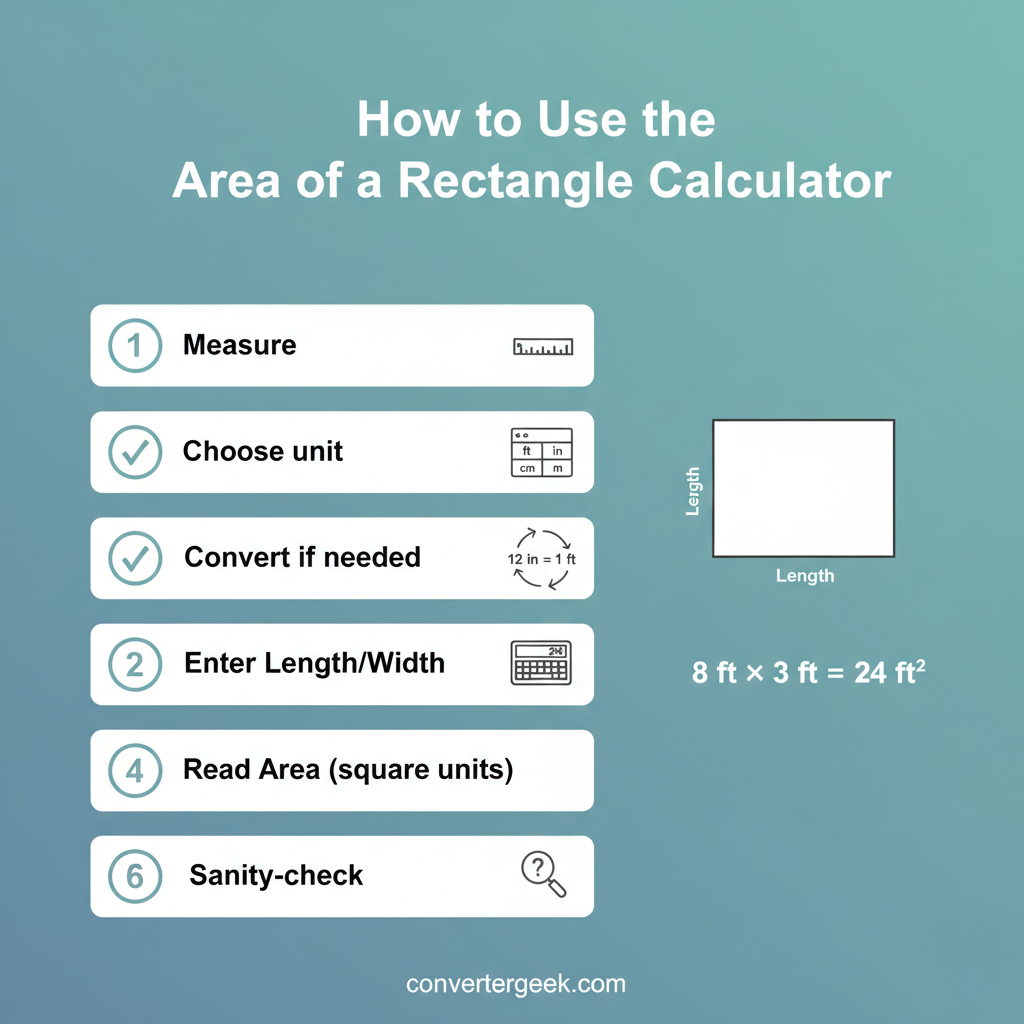
To get the area of a rectangle correctly, you only need two clean measurements and one smart habit: keep units consistent. Follow these steps and you’ll avoid the common “looks wrong” results.
Step-by-step (fast + correct)
- Measure the rectangle’s sides
- Measure the length of the rectangle and the width of the rectangle.
- Make sure you’re measuring the two sides that meet at a right angle.
- Choose your working unit
Pick one unit for both inputs: - inches, feet, centimeters, or meters
- Convert before you calculate (if needed)
If you measured using mixed units: - convert inches to feet (for ft² results), or
- convert feet to inches (for in² results)
This prevents wrong-scale area values.
- Enter Length and Width
Type the two values into the area of a rectangle calculator inputs: - Length
- Width
- Read the result as square units
Your answer is the area of the rectangle in squared units: - in², ft², cm², m²
- Sanity-check (takes 3 seconds)
Ask yourself: - Does it seem reasonable compared to the side lengths?
- Did I accidentally use length + breadth thinking?
- Are both inputs in the same unit?
Practical tips that prevent errors
- Don’t measure the diagonal. It’s not width or length for area.
- Avoid rounding early. Enter full values, round once at the end.
- Label your result. Units for area matter as much as the number.
- If you’re estimating materials, calculate the surface first, then add your own extra for waste/cuts.
Micro Q&A (voice-friendly):
Q: “Hey Google, how do I calculate the area of a rectangle?”
A: Measure length and width in the same unit, multiply them, and write the result in square units.
Quick “unit choice” guide (makes output match your goal)
- Want square feet (ft²)? Convert everything to feet first.
- Want square inches (in²)? Convert everything to inches first.
- Want square meters (m²)? Use meters for both inputs.
- Want square centimeters (cm²)? Use centimeters for both inputs.
This simple rule keeps the area of the rectangle consistent and usable.
6. Real Situations (coverage, layouts, materials)
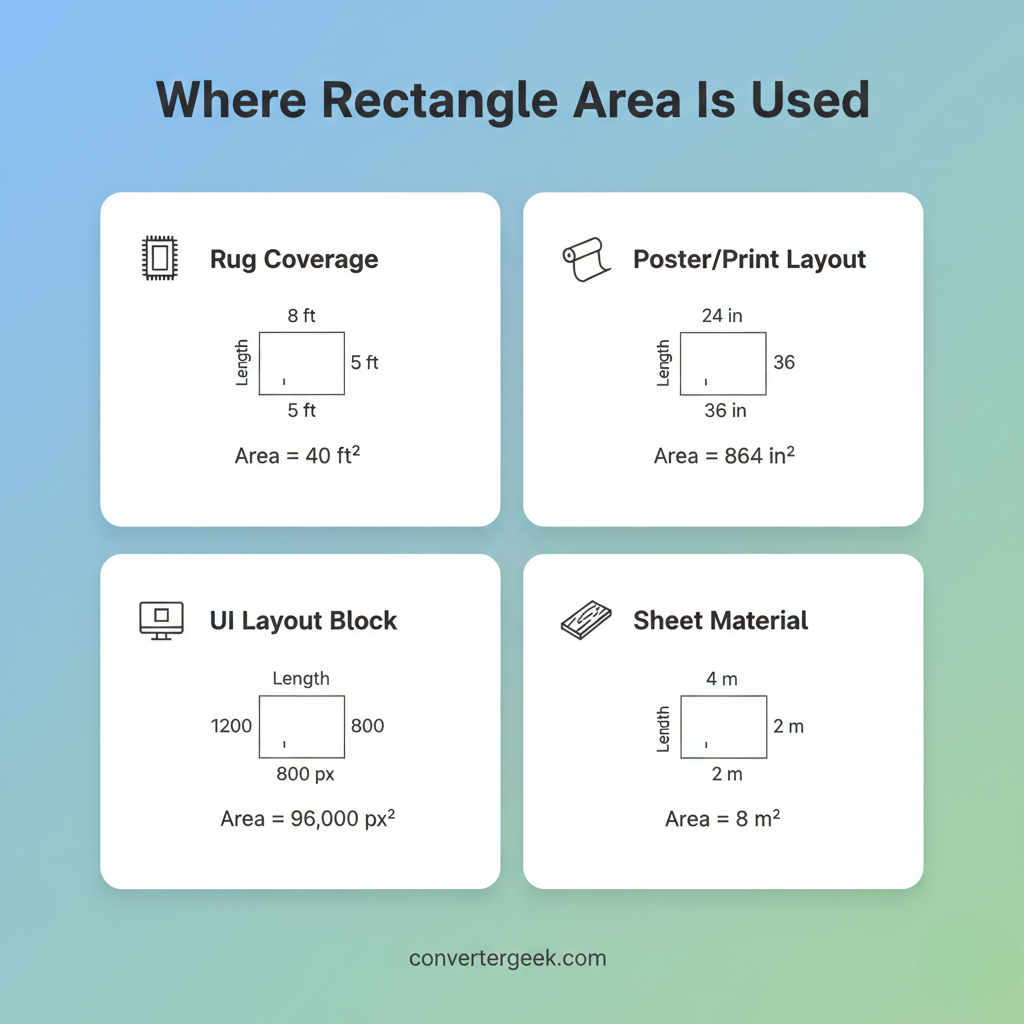
You use the area of a rectangle when you care about surface coverage—how much space something occupies or needs. These situations are where the area of a rectangle calculator saves time and prevents expensive unit mistakes.
1) Rugs, mats, and floor coverage
If you’re choosing between two rug sizes, area tells you which covers more surface.
- Measure the floor zone (length and width).
- Compute the area of the rectangle.
- Compare it with the rug’s coverage area.
Voice micro Q&A:
Q: “Hey Google, how do I compare two rug sizes?”
A: Calculate the area of a rectangle for each rug (length × width) and compare the square-unit results.
2) Posters, printing, and paper layouts
For posters, banners, and print regions, area helps you compare formats quickly.
- Use the area of rectangle formula to compare two sizes.
- Bigger area usually means more space for content and margins (not automatically better—just larger).
Common mistake here: mixing centimeters and inches. Use one unit system before multiplying.
3) Screen and UI blocks (design and layout)
Many design elements are rectangles: hero images, cards, thumbnails, and ad slots.
- Calculate the area of a rectangle to compare two layout blocks.
- This is helpful when deciding which container gives more space for text or visuals.
Micro Q&A:
Q: “Does area help for screen layouts?”
A: Yes. It compares rectangular space, even if it doesn’t describe aspect ratio by itself.
4) Fabric, vinyl, and sheet material planning
If you’re cutting sheet material, you often start with area to estimate surface needs.
- Compute the area of the rectangle for the piece you want.
- If buying by surface size, use the same square unit the seller uses.
Planning note: area gives a surface estimate, but cutting layouts may waste material depending on shape arrangement.
5) Breaking irregular rooms into rectangles
ManyEul spaces aren’t perfect rectangles. The easiest approach is:
- Split the space into multiple rectangles.
- Calculate each area of a rectangle.
- Add them to get a total surface estimate.
This is one of the most practical uses of the area of a rectangle calculator because it keeps the method simple and verifiable.
Mini “which tool do I need?” guide
- Need surface coverage → use area of a rectangle
- Need border length → use perimeter of a rectangle
- Need a different shape’s surface → use the matching area tool (circle, triangle, etc.)
Micro Q&A:
Q: “Area and perimeter—why do I keep mixing them?”
A: Because both use the same side measurements. The difference is the operation: area multiplies, perimeter adds.
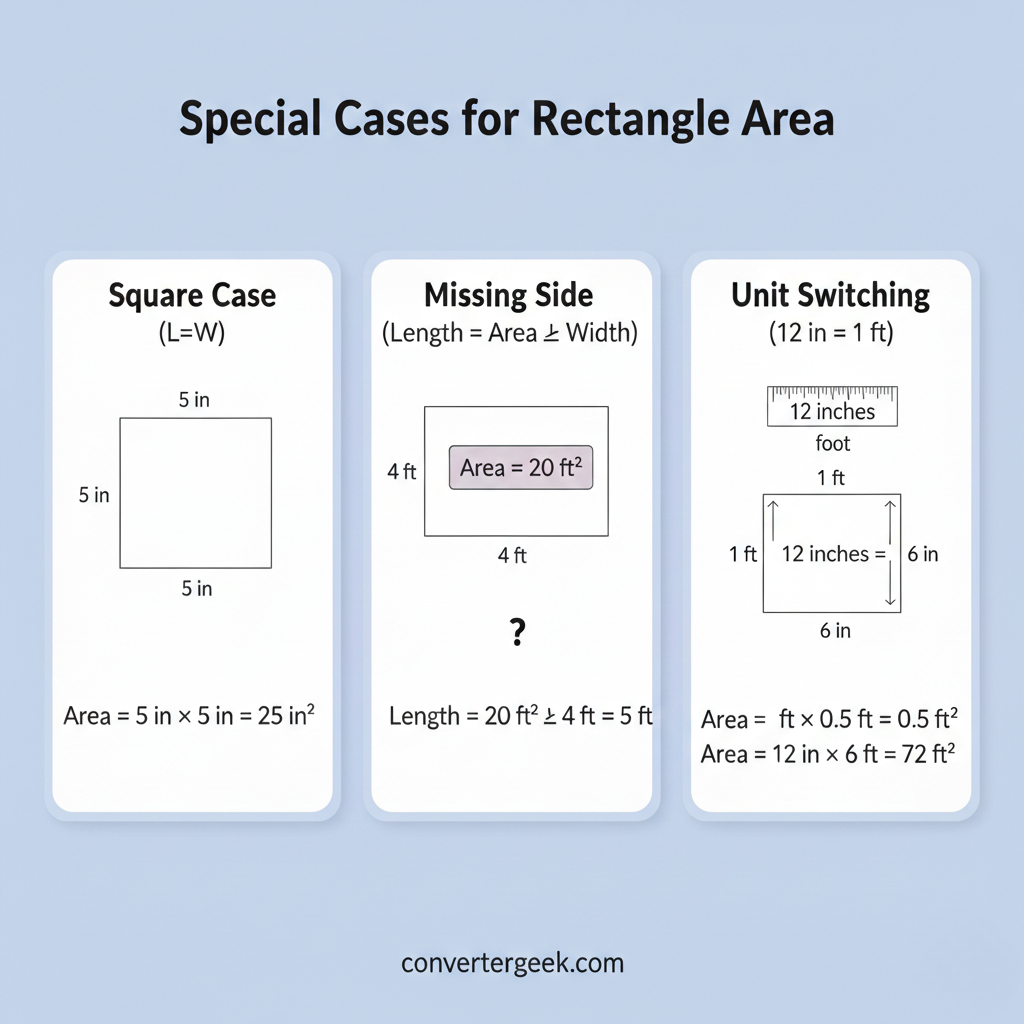
7. Special Cases (square, missing side, unit switching)
These special cases cover the moments when users get stuck—even though the area of a rectangle is simple. If you handle these correctly, your result stays consistent and your units stay clean.
1) Square case (square and rectangle are related)
A square is a rectangle with equal sides. That’s why the area of a rectangle method works for squares too.
- If Length = Width = 7 cm
- Area = 7 × 7 = 49 cm²
This is also why “area of square” is still multiplication—just the same number twice.
Voice micro Q&A:
Q: “Hey Google, is a square a rectangle?”
A: Yes. A square is a special rectangle with all sides equal.
2) If you know area and one side (solve the missing side)
Sometimes you already know the area and need to find the missing side. This shows up in worksheets and planning problems.
If you know:
- Area = 96 in²
- Width = 8 in
Then:
- Length = Area ÷ Width
- Length = 96 ÷ 8 = 12 in
This also explains confusing notes like length = area. What they mean is:
length = area ÷ widthVoice micro Q&A:
Q: “If I have area and width, how do I find length?”
A: Divide area by width: length = area ÷ width.
3) Unit switching (inches ↔ feet) — the common trap
This is where many incorrect rectangle areas come from: mixing units.
Rule that prevents the mistake
Convert first, then multiply.
- Want ft²? Convert both inputs to feet before using the area of a rectangle calculator.
- Want in²? Convert both inputs to inches first.
Example (why it matters):
A rectangle that is 2 ft by 12 in is actually 2 ft by 1 ft, not 2 by 12.
- Correct conversion: 12 in = 1 ft
- Area = 2 ft × 1 ft = 2 ft²
Voice micro Q&A:
Q: “Hey Google, can I multiply feet and inches for area?”
A: Not directly. Convert them to the same unit first.
4) “Height of the rectangle” wording in problems
Some problems say “height” instead of width. For rectangle area, height usually just means the perpendicular side.
So for the area of the rectangle:
- Length = one side
- Height/Width = the perpendicular side
- Area = Length × Width
5) When you should treat the result as an estimate
Even with correct math, results depend on measurement quality.
Treat the area of a rectangle result as an estimate if:
- the shape isn’t a perfect rectangle (corners slightly off)
- measurements were rounded heavily
- edges aren’t straight
8. Understanding Your Result + Next Step
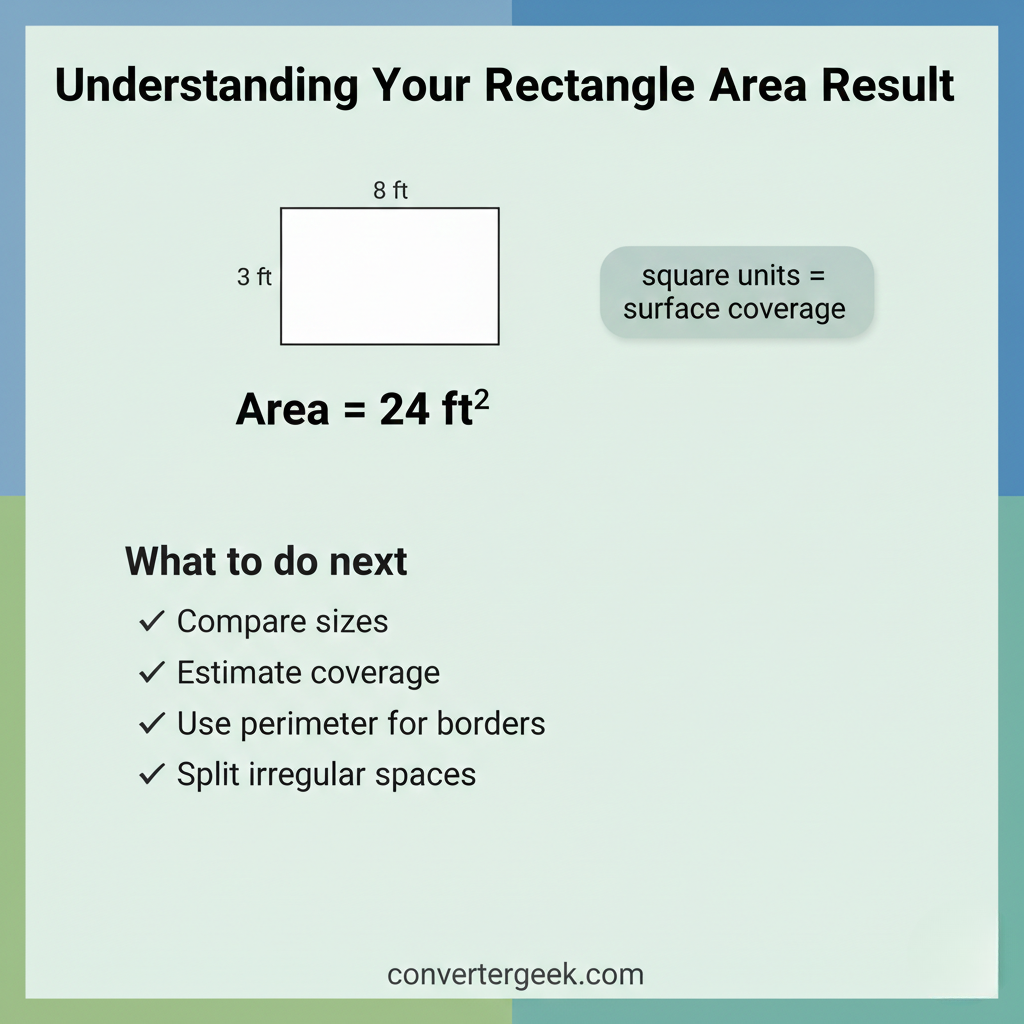
Your result is the area of a rectangle—a surface coverage value in square units. The best next step depends on what you’re trying to do: compare sizes, estimate coverage material, or double-check a measurement.
Results generated using ConverterGeek’s verified calculation logic.
What the number actually means (plain-English interpretation)
If your result is 24 ft², it means:
- the rectangle covers 24 square feet of surface.
If your result is 96 in², it means:
- the rectangle covers 96 square inches of surface.
This is why people search “the area of the rectangle”—it’s literally the inside surface.Voice micro Q&A:
Q: “Hey Google, what does 24 square feet mean?”
A: It means the surface covers 24 squares of 1 foot by 1 foot.
How to sanity-check the area of a rectangle in 5 seconds
Use these quick checks before you rely on the number:
- Size check: Is the area roughly the same “scale” as the sides?
- Example: 10 × 12 should be a bit over 100, not 1,000.
- Unit check: Is the output labeled correctly (ft² vs in²)?
- Mixed units cause “too big” or “too small” results.
- Method check: Did you multiply, not add?
- If you used length + breadth, you’re not calculating area.
Voice micro Q&A:
Q: “Why does my area look too big?”
A: You may have mixed units or squared the wrong unit.
What to do next (based on your goal)
Goal A: Compare two rectangles
- Calculate area for each rectangle.
- Compare the square-unit outputs.
- Bigger number = more surface coverage.
Goal A: Compare two rectangles
Area tells you surface coverage, but buying decisions usually need a little extra planning.
- Use the area of a rectangle calculator for the base surface.
- Then add your own buffer depending on cutting, trimming, or pattern matching.
(This stays planning-focused and avoids telling you what you “must” buy.)
Goal C: You need border length, not area
If you’re planning trim, frames, fencing, or edging, area is not the right metric.
- Switch to perimeter of a rectangle instead of area.
Goal D: Your space isn’t a perfect rectangle
- Split the space into multiple rectangles.
- Add each area of a rectangle result.
Treat the total as an estimate if corners aren’t clean 90° angles.
Common “next step” questions (quick answers)
- Q: “Can I convert ft² to in²?”
A: Yes, but do it as an area conversion (square units), not a simple length conversion. - Q: “Does rotating the rectangle change the area?”
A: No. Rotation doesn’t change the area of the rectangle. - Q: “Should I round the result?”
A: Round at the end, and keep enough precision for your use case.
9. Quick Tables (common sizes + unit checks)
These tables are here for one reason: to help you sanity-check the area of a rectangle quickly. If your calculator output doesn’t “feel” right, compare it to a nearby row—most mistakes are unit-related or caused by using the wrong operation.
Quick table 1: Common rectangle areas (mental cross-check)
If your inputs are close to one of these pairs, your result should be close too.
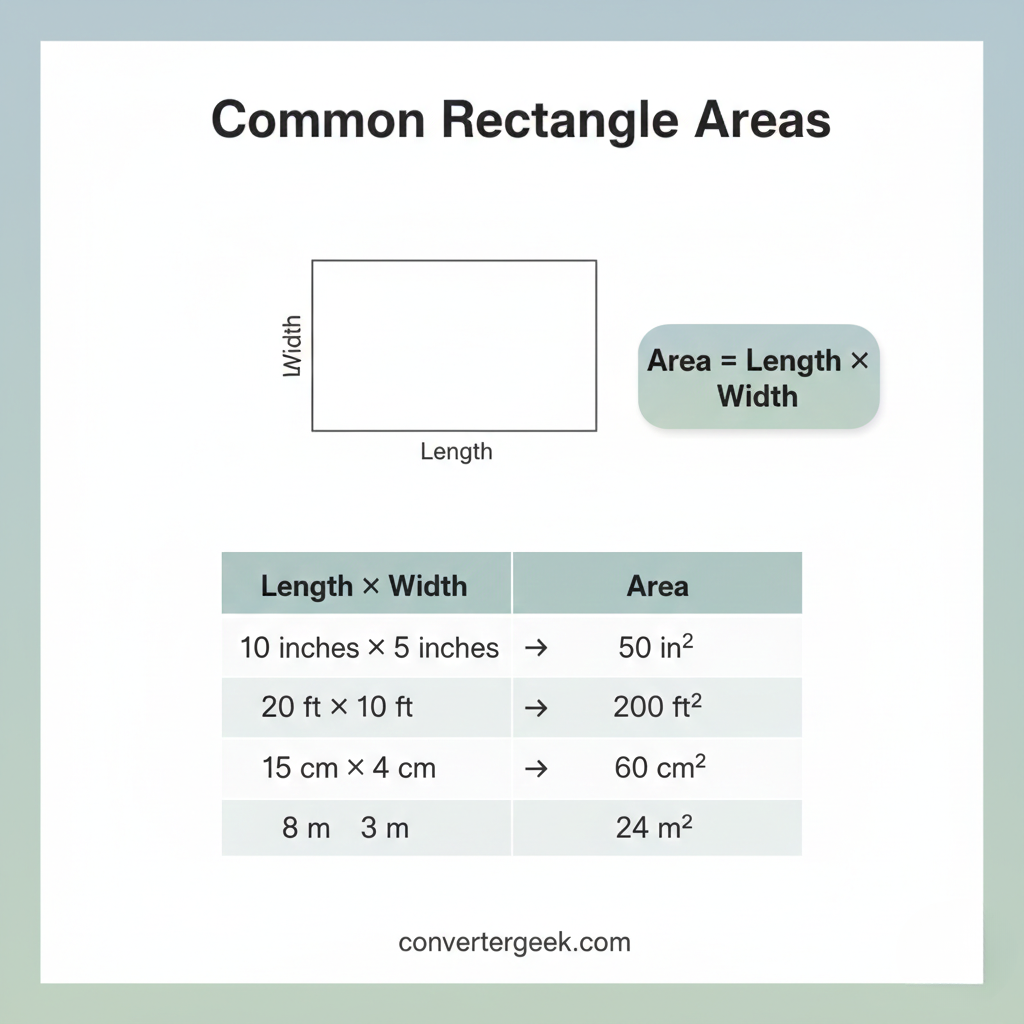
Length × Width = Area (Quick Examples)
These examples show how area is calculated using Length × Width. Use them as a fast sanity check.
| Length | Width | Area (Length × Width) |
|---|---|---|
| 2 | 3 | 6 |
| 4 | 5 | 20 |
| 6 | 8 | 48 |
| 7 | 9 | 63 |
| 9 | 12 | 108 |
| 10 | 12 | 120 |
| 12 | 15 | 180 |
| 15 | 20 | 300 |
| 24 | 36 | 864 |
Voice micro Q&A:
Q: “Hey Google, what’s 12 by 8 area?”
A: 96 square units (if both are the same unit).
Quick table 2: Area vs perimeter (don’t confuse the outputs)
People often search area and perimeter together because they look similar but mean different things.
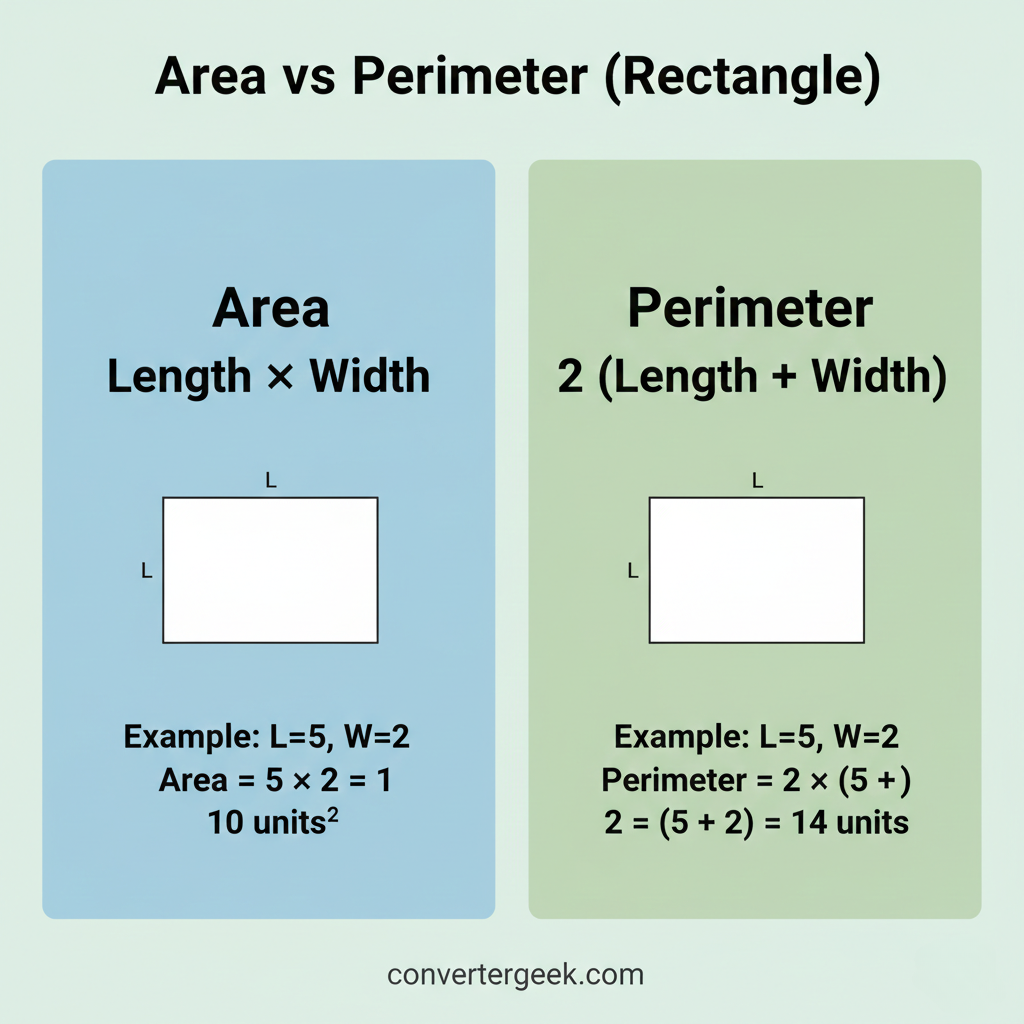
Inside Surface vs Outside Outline (Which Formula to Use?)
If you’re measuring coverage, use area. If you’re measuring an outline, use perimeter.
| You’re trying to find… | Use | Formula |
|---|---|---|
| Inside surface / coverage | Area of a rectangle | length × width |
| Outside border / outline | Perimeter of a rectangle | 2 × (length + width) |
Fast warning: If you used length + breadth, you’re not calculating the area of the rectangle.
Quick table 3: Unit checks (this catches most “wrong” areas)
This table helps confirm you’re using units for area correctly.
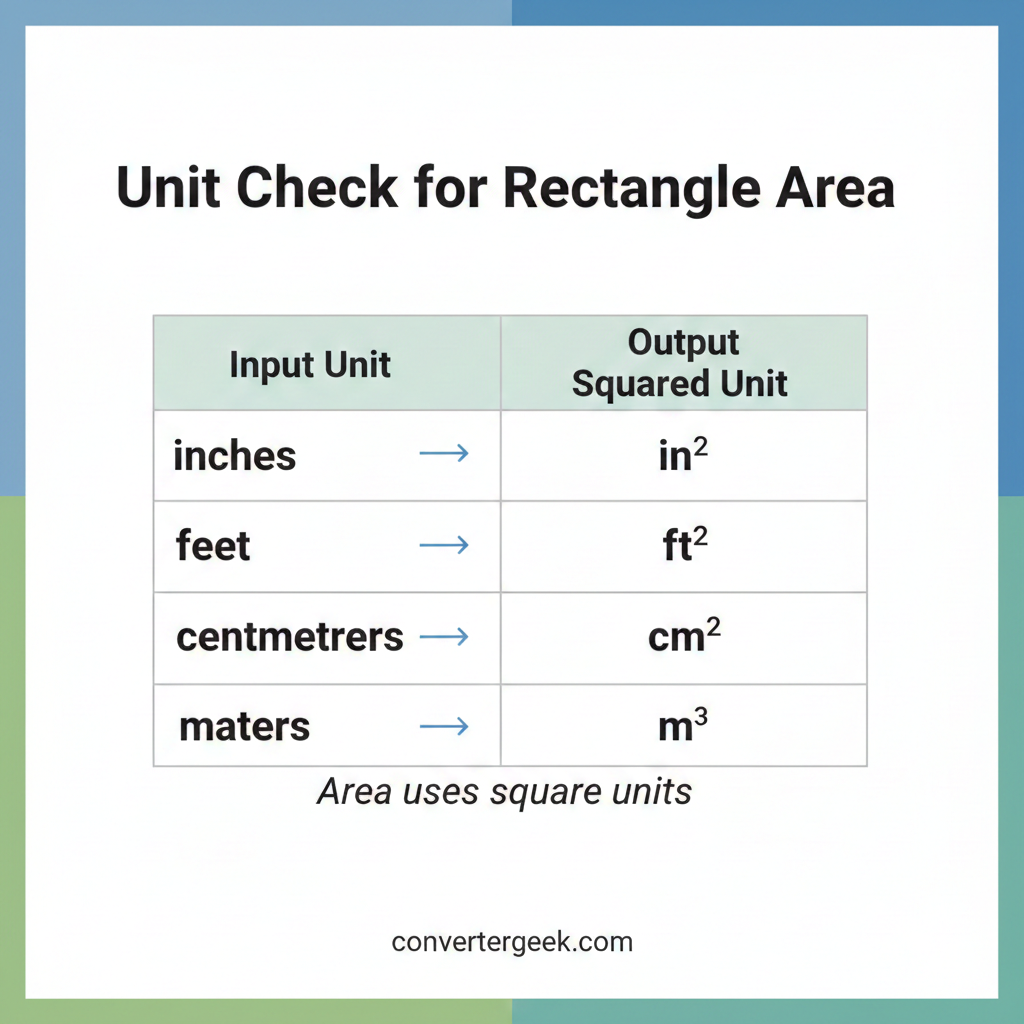
If Your Inputs Are… Here’s the Correct Area Unit
Area is measured in square units. This table helps you avoid common unit-label mistakes (like forgetting the squared symbol).
| If your inputs are… | Your output should be… | Common mistake |
|---|---|---|
| Inches | in² (area in square inches) | Unit label error writing “in” instead of “in²” |
| Feet | ft² | Mixed units mixing inches with feet |
| Centimeters | cm² | Missing symbol forgetting squared symbol |
| Meters | m² | Rounding rounding too early |
Voice micro Q&A:
Q: “Hey Google, why is my result in square feet?”
A: Because area measures surface coverage, so units are squared.
How to use these tables with the area of a rectangle calculator
- If your output is far from what the common-area table suggests, re-check your inputs.
- If your output unit doesn’t match the unit-check table, you likely mixed units or labeled it incorrectly.
- If you meant to measure borders, use the perimeter table instead.
10. Common Mistakes and Fixes
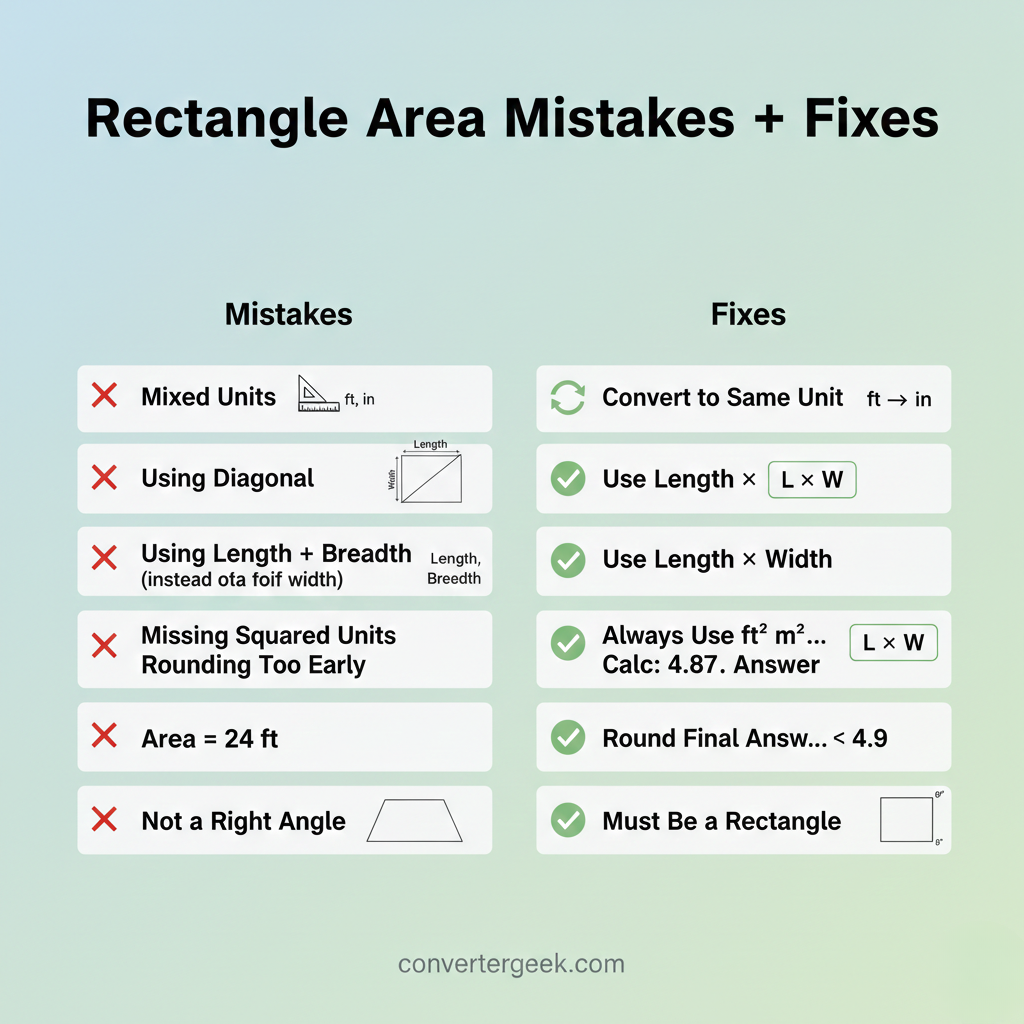
Most wrong area of a rectangle results come from a small set of predictable mistakes: unit mix-ups, using the diagonal, or accidentally doing perimeter math. Use this section like a troubleshooting checklist—find your mistake, apply the fix, and re-run the area of a rectangle calculator.
Mistake 1: Mixing units (feet + inches in the same calculation)
What happens: Your answer looks wildly too big or too small.
Fix: Convert first, then multiply.
- Want ft² → convert everything to feet (example: inches to feet).
- Want in² → convert everything to inches (feet to inches).
Voice micro Q&A:
Q: “Hey Google, can I multiply feet and inches for area?”
A: Not directly. Convert both to the same unit first.
Mistake 2: Using length + breadth (perimeter thinking)
What happens: You get a smaller number that looks “reasonable,” but it’s wrong for area.
Fix: Area uses length times width.
- Area: Length × Width
- Perimeter: 2 × (Length + Width)
If you see the phrase length + breadth, pause—someone is thinking perimeter.
Mistake 3: Entering the diagonal as width or length
What happens: The result doesn’t match reality, especially for long skinny rectangles.
Fix: Use perpendicular sides only.
A diagonal is not a side for rectangle area. If you only know the diagonal, you need extra information (like one side) before you can find the missing side.
Mistake 4: Forgetting square units (labeling error)
What happens: You write “24 ft” instead of “24 ft²,” which changes the meaning.
Fix: Always label the area using squared units.
Examples:
- in² = area in square inches
- ft² = square feet
- cm² = square centimeters
- m² = square meters
This is the simplest accuracy boost because it prevents miscommunication.
Mistake 5: Rounding too early
What happens: Small rounding errors stack up, especially if you converted units first.
Fix: Keep full precision during calculation; round once at the end.
If you must round, keep at least:
- 2 decimal places for small measurements
- more for scientific or tight-fit work (as needed)
Mistake 6: Measuring the wrong edges (not truly perpendicular)
What happens: Your shape looks like a rectangle but corners aren’t right angles.
Fix: Confirm corners are 90° or treat the area as an estimate.
If corners are off, it may be a different shape (like a parallelogram). In that case, rectangle area may not represent the true surface.
Mistake 7: Confusing “height of the rectangle” with 3D height
What happens: You try to include thickness or depth.
Fix: For area of a rectangle, height means the perpendicular side (width), not thickness.
If you’re dealing with 3D objects, you might be looking for surface area or volume instead.
Mistake 8: Using area when you actually need perimeter
What happens: You calculate area for trim, framing, edging, or fencing and the amount is wrong.
Fix: Use perimeter for borders.
- If it wraps around the edge → perimeter
- If it covers the surface → area
Fast re-check script (30 seconds)
Before you re-run the area of a rectangle calculator, verify:
- ✅ I used perpendicular sides (not diagonal).
- ✅ Units match (both inches or both feet, etc.).
- ✅ I multiplied (did not add).
- ✅ My output is squared (ft², in², cm², m²).
11. When to Trust This Converter
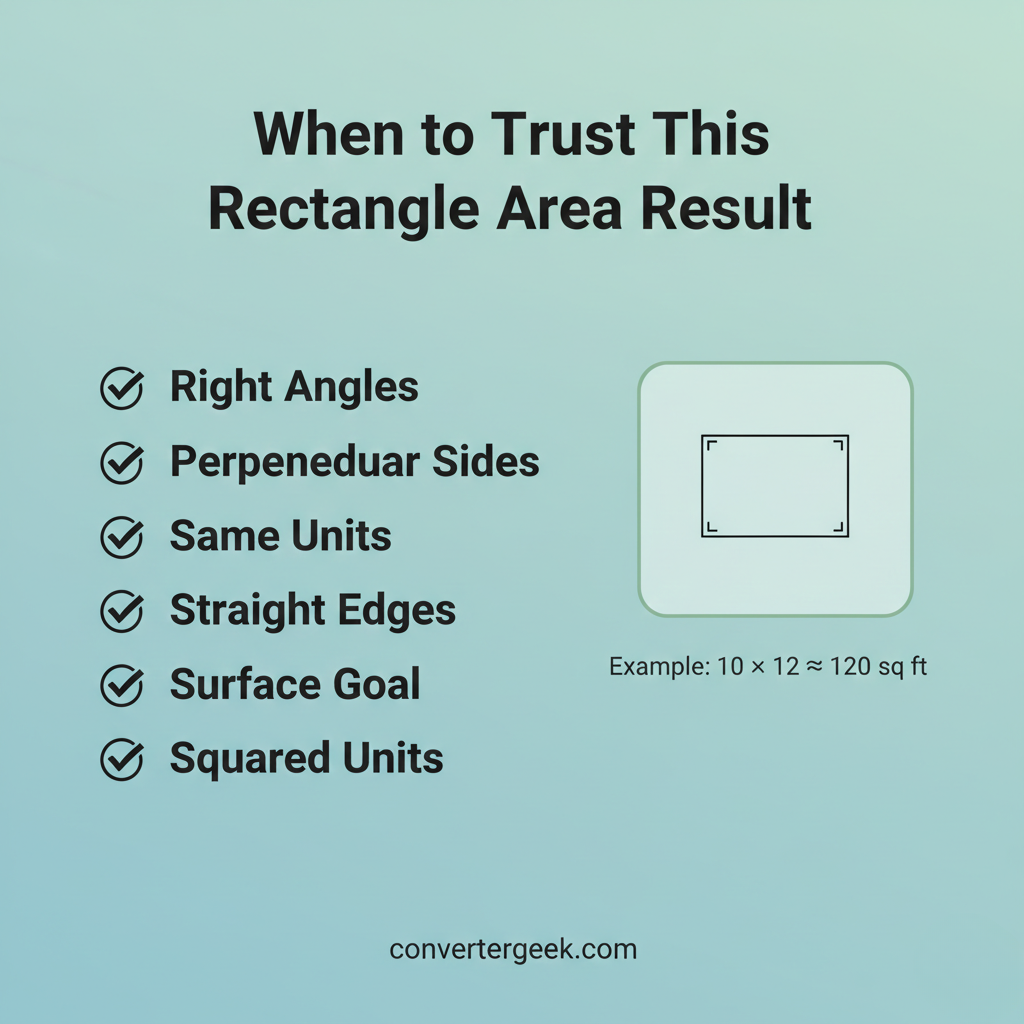
You can trust the area of a rectangle result when your inputs describe a real rectangle (or a clean rectangle section) and your units are consistent. This checklist is designed for quick “yes/no” confidence—especially useful before planning coverage or sharing results.
Trust checklist (quick and practical)
Use the area of a rectangle calculator with confidence when all (or most) of these are true:
- ✅ Right-angle corners: the sides you measured meet at roughly 90°.
- ✅ Perpendicular sides used: you entered length and width, not the diagonal.
- ✅ Same units: both inputs are in the same unit before multiplying.
- ✅ Straight edges measured: you measured straight sides, not curves.
- ✅ Surface goal matches output: you’re solving for surface coverage (not border length).
- ✅ Square-unit output makes sense: result is labeled in in², ft², cm², or m².
If you pass this checklist, the area of the rectangle is typically a solid planning or learning number.
When the result is still “usable,” but only as an estimate
Treat the area of a rectangle as an estimate (not a final measurement) if:
- corners are slightly off 90°
- measurements were taken quickly or from a rough sketch
- the surface has cutouts, rounded edges, or gaps
- you rounded inputs aggressively
This doesn’t mean the tool is wrong—it means the inputs are approximate.
A simple confidence cue (fast mental test)
A rough mental check helps confirm you’re in the right ballpark:
- If length ≈ 10 and width ≈ 12, area should be ≈ 120
- If you got 1,200 or 12, you likely:
- mixed units, or
- used addition (perimeter thinking), or
- mis-entered a decimal
Voice micro Q&A:
Q: “Hey Google, how do I know my rectangle area is correct?”
A: Check that you multiplied length by width, used the same units, and the result is labeled in square units.
12. Limitations & Disclaimer
This area of a rectangle page is built for fast, clear calculation and learning—but the output is only as reliable as the measurements you enter. Use it for planning, comparison, and education, and double-check when the situation demands precision.
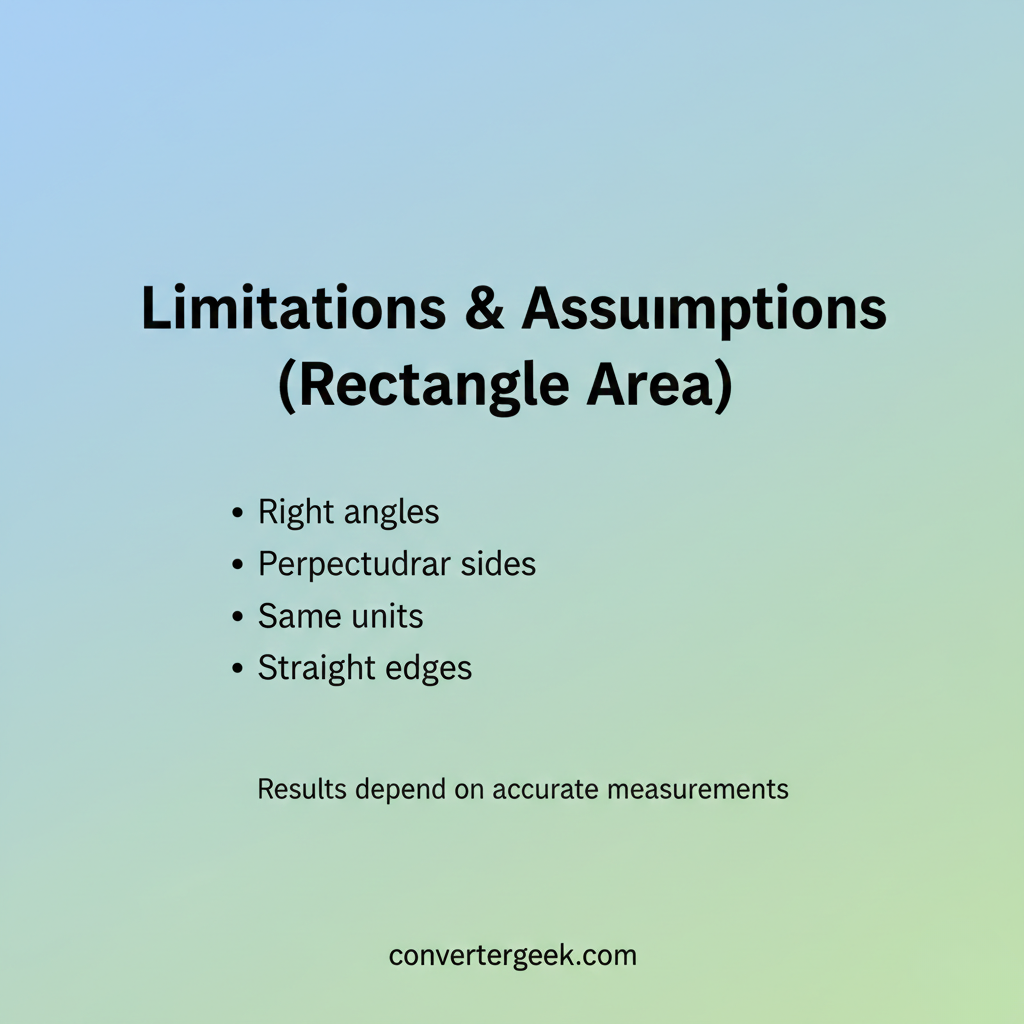
What this calculator assumes
The area of a rectangle calculator assumes:
- You are working with a true rectangle (four right angles).
- The two values entered are perpendicular sides (length and width).
- Both inputs are in the same unit (or you converted before calculating).
- The measured edges are straight (not curved or irregular).
If those assumptions hold, the area of the rectangle result is typically straightforward.
Where the tool can’t “know” your real-world situation
The calculator cannot automatically detect:
- whether corners are truly 90°
- whether you measured the correct edges
- whether the surface has cutouts, holes, or gaps
- whether you need allowances for waste, trimming, or layout constraints
- whether your unit conversions were correct before input
So if your rectangle is part of a more complex shape, split it into rectangles and add areas for a better estimate.
Limitations you should keep in mind (fast list)
- If the shape is not a rectangle, the area of a rectangle may not represent the true surface.
- If you only know a diagonal, you need additional information to compute area correctly.
- If units are mixed (feet + inches), the result will be wrong unless you convert first.
- Rounding early can shift results, especially after unit conversions.
- Real materials sometimes require extra planning beyond pure surface area.
Required sentence (verbatim, included once):
“convertergeek tools are designed for fast estimation and planning. Always confirm measurements and requirements before purchasing materials or making final decisions.”
13. Ad & Content Safety Note
This area of a rectangle page is for general measurement education and planning. Results depend on your measurements, units, and rounding choices, so treat outputs as estimates when inputs are approximate. For compliance-critical work, confirm dimensions using appropriate tools and requirements.
14. Accuracy & Editorial Standards
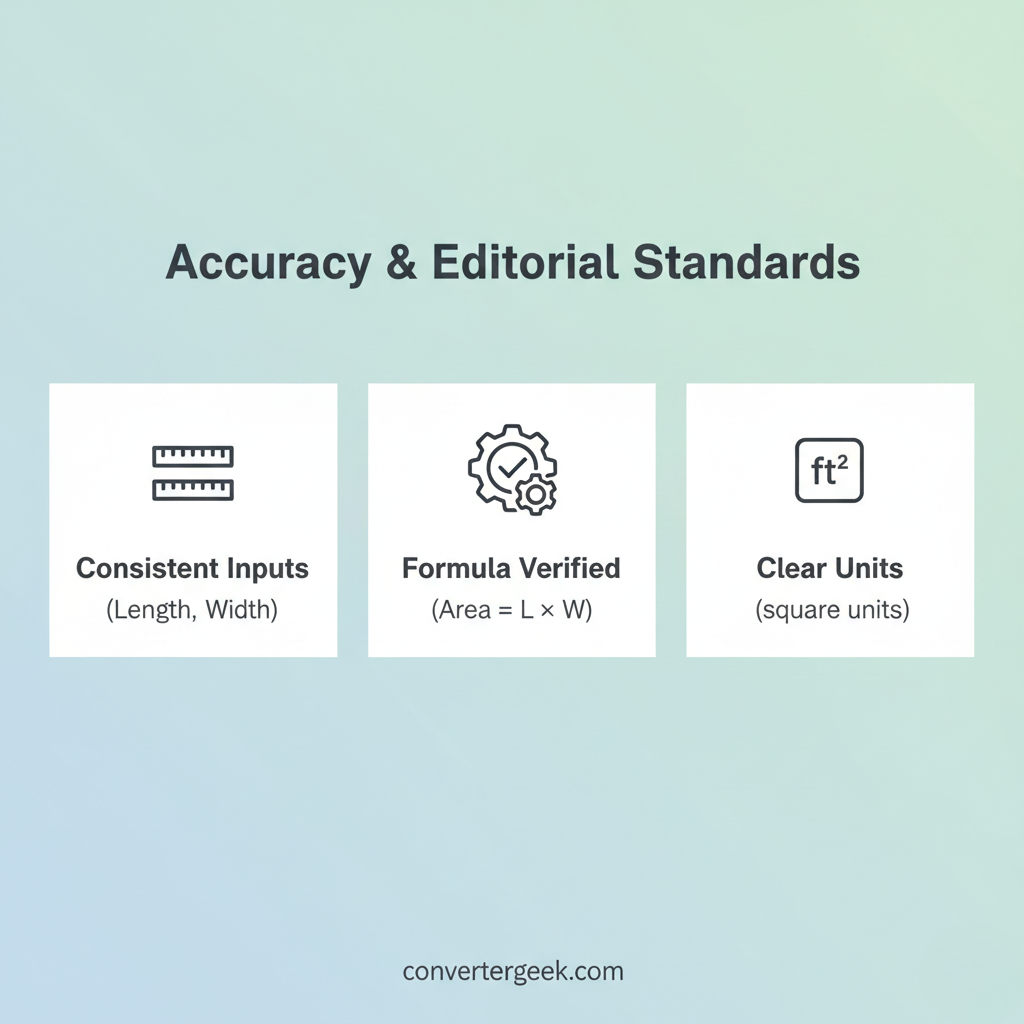
This page is written to make the area of a rectangle easy to calculate, easy to verify, and easy for search engines and voice assistants to extract correctly. We prioritize clear inputs, consistent terms, and fast-scanning structure so users get answers quickly without confusion.
How we keep the math consistent
We use a single, standard rule throughout the page:
- Area of a rectangle = length times width
- Output is expressed in units for area (square units)
We do not rename fields randomly. When we say:
- Length = one perpendicular side
- Width = the other perpendicular side
- Area = the surface result in square units
That consistency helps avoid misunderstandings and supports reliable AI summaries.
How we reduce user mistakes (UX writing standards)
This page is structured around the mistakes real people make, including:
- mixing inches and feet
- confusing area with perimeter
- forgetting square-unit labels
- using a diagonal instead of a side
That’s why you’ll see:
- direct rules near the top
- quick tables for cross-checks
- short sections with practical “what to do next”
EEAT & trust signals built into the content
We aim for trust by being specific and verifiable:
- Definitions are plain and consistent.
- Steps match the formula shown.
- Limitations are stated clearly (no hype).
- Voice-friendly answers keep meaning intact.
If you’re using this for learning, the goal is not just “get a number,” but “know why it’s correct.”
Performance and mobile clarity (practical standards)
This page is designed to be:
- fast to scan on mobile (short paragraphs, structured lists)
- friendly for tables (easy cross-checking)
- lightweight for quicker loading (simple visuals, clear content hierarchy)
Fast loading and clean layout help reduce bounce and improve engagement signals.
15. Author Bio
This content is written and reviewed with a focus on practical measurement clarity—so anyone can calculate the area of a rectangle confidently, label it correctly in square units, and avoid common mistakes like unit mixing or perimeter confusion.
Author
Name: Emma Richardson
Credential: M.Sc. Mathematics
Role: Content Editor (Geometry & Measurement)
Bio (trust-focused)
Emma writes geometry and measurement guides that prioritize:
- clear definitions and consistent terminology (Length, Width, Area)
- unit-safe explanations (why results are squared)
- real-world usage (coverage, layouts, basic planning)
- error prevention (common mistakes + quick fixes)
What Emma focuses on for this page
- Making the area of rectangle formula easy to verify by inspection
- Keeping voice-search answers short and accurate
- Ensuring the area of a rectangle calculator workflow is simple enough for everyday use
Including limitations so the content stays realistic and AdSense-safe
16. Internal Linking Strategy
Internal links help users move from “one answer” to “the next logical tool,” and they help search engines understand how your geometry + conversions cluster connects. The goal is to link from this area of a rectangle page to closely-related tasks without repeating the same anchor text.
Where to place internal links (best spots inside this article)
Use links where the reader naturally needs the next tool:
- After unit warnings → link to unit converters (inches↔feet).
- After “area vs perimeter” explanation → link to perimeter tool.
- After “square vs rectangle” note → link to square area tool.
- After “split into rectangles” tip → link to triangle/circle area tools for mixed shapes.
This keeps links helpful (not spammy) and improves engagement.
Suggested internal links (unique anchor text)
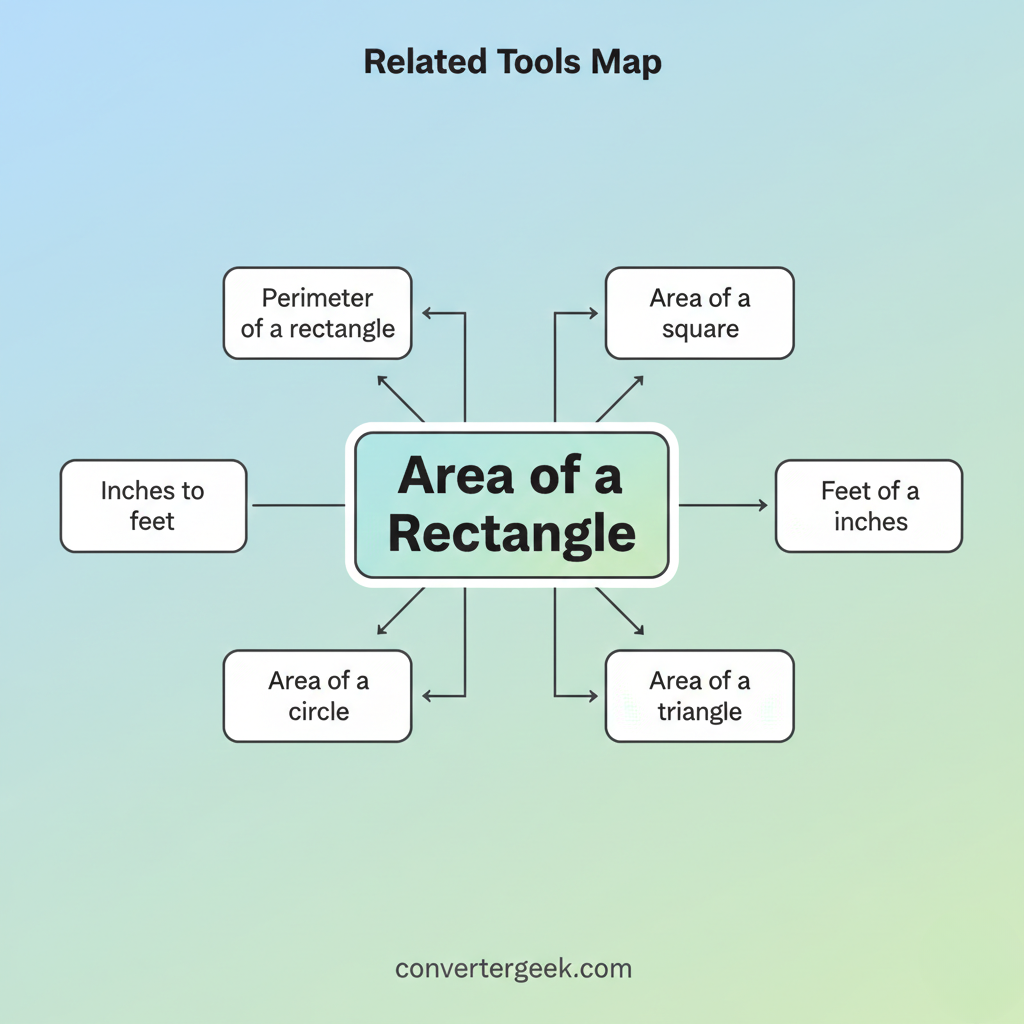
Use these 9 internal links on convertergeek with unique, user-first anchors:
- “Find circular surface area fast” → Area of a circle
- “Triangle area from base and height” → Area of a triangle
- “Solve triangle sides in one place” → Triangle calculator
- “Get the rectangle border length” → Perimeter of a rectangle
- “Convert inches to feet before calculating” → Inches to feet
- “Switch feet to inches for exact inputs” → Feet to inches
- “Square surface area for equal sides” → Area of a square
- “Golden ratio sizing helper” → Golden ratio calculator
- “Golden rectangle proportions tool” → Golden rectangle calculator
Tip: Try to place 6–8 of these links directly in relevant paragraphs, and keep 1–2 for a “Related tools” block near the end.
Recommended link placement plan (simple)
- In Inputs & Outputs → add links #5 and #6 (unit cleanup).
- In Area vs perimeter section → add link #4.
- In Special cases (square) → add link #7.
- In Real situations (layouts/design) → add link #8 or #9.
- In If shape isn’t a rectangle note → add links #1–#3 (related areas).
This plan prevents overlinking and keeps everything relevant.
17. FAQs (Voice-Friendly Answers)
These FAQs are written to work well for voice search and AI Overviews. Each answer stays short, keeps units clear, and uses consistent terms (Length, Width, Area) so the area of a rectangle doesn’t get confused with perimeter or other shapes.
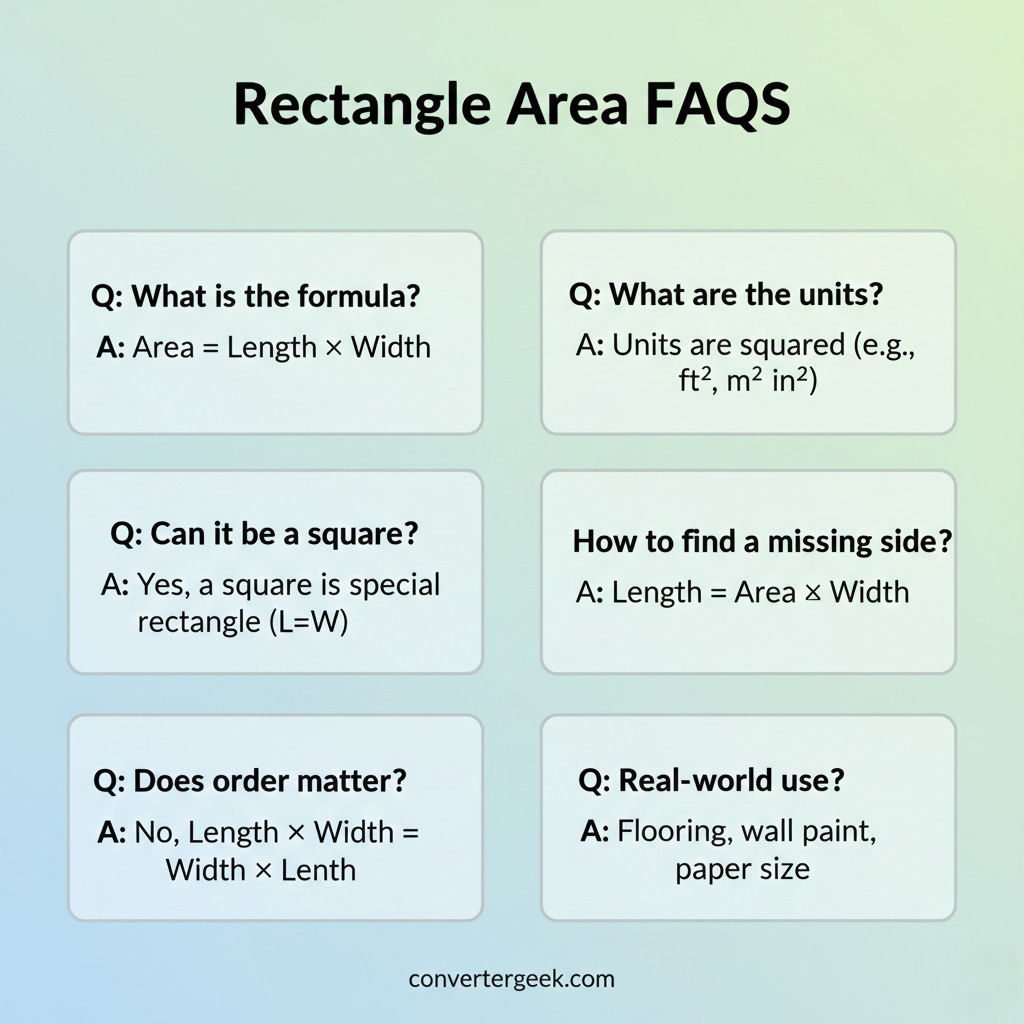
FAQ 1: Hey Google… what’s the area of a rectangle?
The area of a rectangle is the surface inside it. Multiply length by width and write the result in square units like ft², in², cm², or m²
FAQ 2: What is the area of a rectangle formula?
The area of rectangle formula is Area = Length × Width. Make sure both measurements use the same unit before multiplying.
FAQ 3: How do I use an area of a rectangle calculator correctly?
Enter length and width in the same unit, then read the area of the rectangle in square units. Convert inches to feet or feet to inches first if needed.
FAQ 4: Can I swap length and width when finding the area of a rectangle?
Yes. Swapping length and width does not change the area of a rectangle because multiplication works either way.
FAQ 5: Why is my answer in square units (like ft²)?
Area measures surface coverage, so units are squared. For example, ft × ft becomes ft².
FAQ 6: Is area and perimeter the same thing?
No. Area is inside surface (length times width). Perimeter is the border: 2 × (length + width).
FAQ 7: Hey Google… can area of a rectangle be negative?
No. A negative area usually means a negative value was entered by mistake.
FAQ 8: What if I know the area and width—how do I find length?
Use Length = Area ÷ Width. This is the correct meaning behind confusing notes like “length = area.”
18. References
Below are authoritative sources used for definitions, units, and basic geometry concepts. (These are listed for transparency and trust.)
- National Institute of Standards and Technology. (n.d.). SI units and measurement fundamentals.
https://www.nist.gov/pml/owm/metric-si/si-units - OpenStax. (n.d.). Physical quantities and units. In College Physics 2e.
https://openstax.org/books/college-physics-2e/pages/1-2-physical-quantities-and-units - Wikipedia contributors. (n.d.). Rectangle. In Wikipedia.
https://en.wikipedia.org/wiki/Rectangle
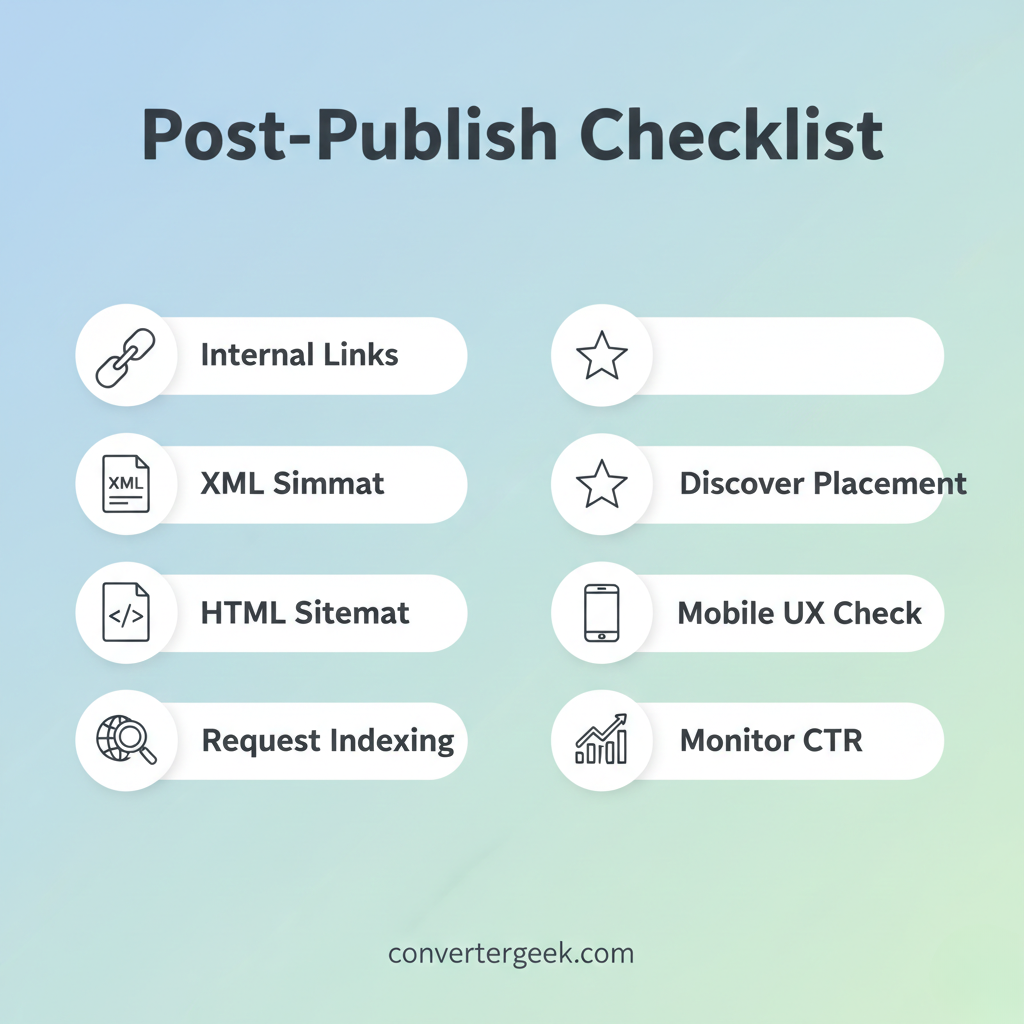
19. Post-Publish Checklist
Use this checklist to launch the area of a rectangle page cleanly, get it indexed fast, and help it earn early engagement signals (especially useful for Discover-style surfaces).
A) Internal link placement (do this first)
- Add a link to this page from your Geometry category/hub page (breadcrumb parent).
- Add a link from one high-traffic converter page (example: an inches↔feet conversion page), using a unique anchor like “calculate rectangle area in square units.”
Why this matters: internal links help crawlers discover the page faster and give it contextual relevance.
B) XML + HTML sitemap inclusion
- Confirm the page appears in your XML sitemap (via your SEO plugin).
- If you maintain an HTML sitemap, add the new page under Geometry/Area tools.
Quick test:
- Open the XML sitemap URL and search the slug area-of-a-rectangle.
C) Request indexing in Google Search Console
- Open Google Search Console
- Use URL Inspection
- Paste the final URL:
https://convertergeek.com/area-of-a-rectangle/ - Click Request Indexing
This speeds up discovery and helps you spot coverage issues early.
D) Discover-friendly placement (important for early signals)
Feature this page once in the homepage Popular Converters module or on a relevant hub page (Geometry/Area hub).
This drives early clicks and scroll depth, which can help the page qualify for recommendation-style surfaces over time.
E) Mobile UX check (before you promote it)
On mobile, verify:
- Tables scroll smoothly and don’t overflow awkwardly.
- Inputs are easy to tap (no tiny fields).
- The formula and “Quick Answer” are visible without hunting.
- Page doesn’t feel “heavy” (avoid oversized images).
F) Monitor performance for 14 days
Track:
- Impressions (is Google showing it?)
- CTR (are meta title/description working?)
- Average position (is it climbing?)
- Engagement (scroll depth / time on page if you track it)
If impressions are rising but CTR is low, tweak:
- Meta description (stronger mistake-prevention hook)
- Featured image (clear “Length × Width” visual)