
Pixels to Inches Converter
Pixels to Inches Converter
Instantly convert inches and pixels using a specified PPI (pixels per inch).
A pixels to inches converter helps you translate digital image dimensions (measured in pixels) into real-world physical size (measured in inches) using pixels per inch (PPI). It’s designed for designers, students, content creators, and everyday users who need to know how big an image will actually be when placed in a document, slide, or layout—before resizing or exporting.
In simple terms, this tool answers:
“If my image is X pixels wide, how many inches is that?”
And it does so by applying the correct PPI, which is the only factor that gives pixels a physical meaning.
Pixels alone don’t tell you physical size.
The same image can appear tiny or huge depending on the PPI you use. That’s why guessing often leads to wrong exports, awkward layouts, or unnecessary rework.
This pixels to inches converter removes that guesswork by making the conversion explicit, fast, and repeatable.
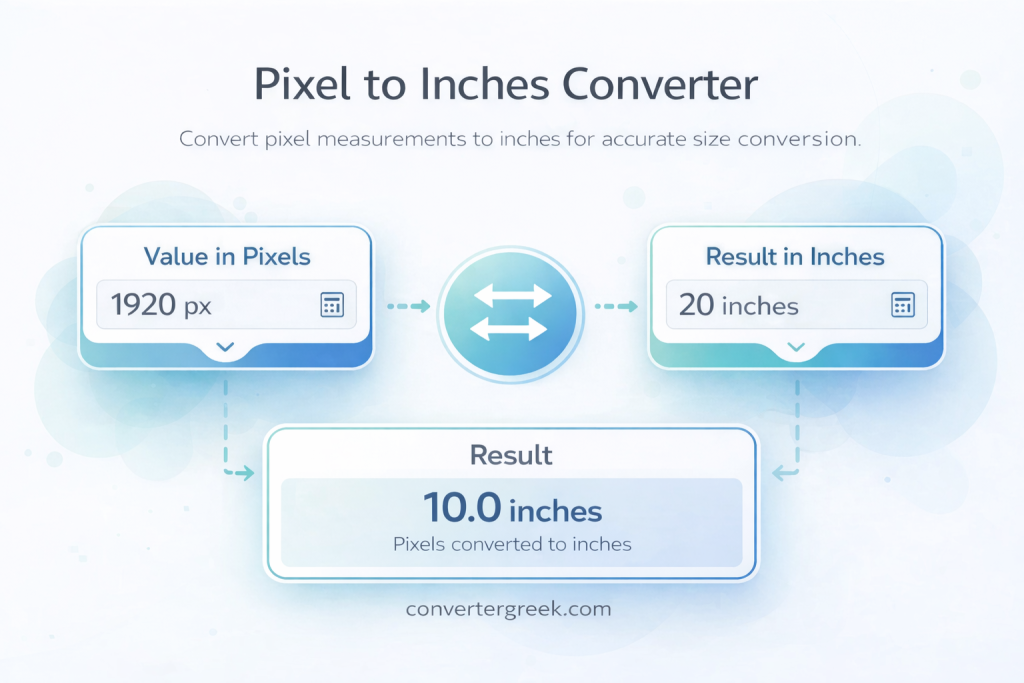
Key Points:
- A pixels to inches converter turns px into inches using pixels per inch.
- Without PPI, pixels have no fixed physical size.
- Higher PPI means the same pixels take up less space in inches.
- Lower PPI means the same pixels take up more space in inches.
- You can also reverse the calculation to convert inches to px.
- This tool is best for planning, layout checks, and sizing decisions.
Quick Answer
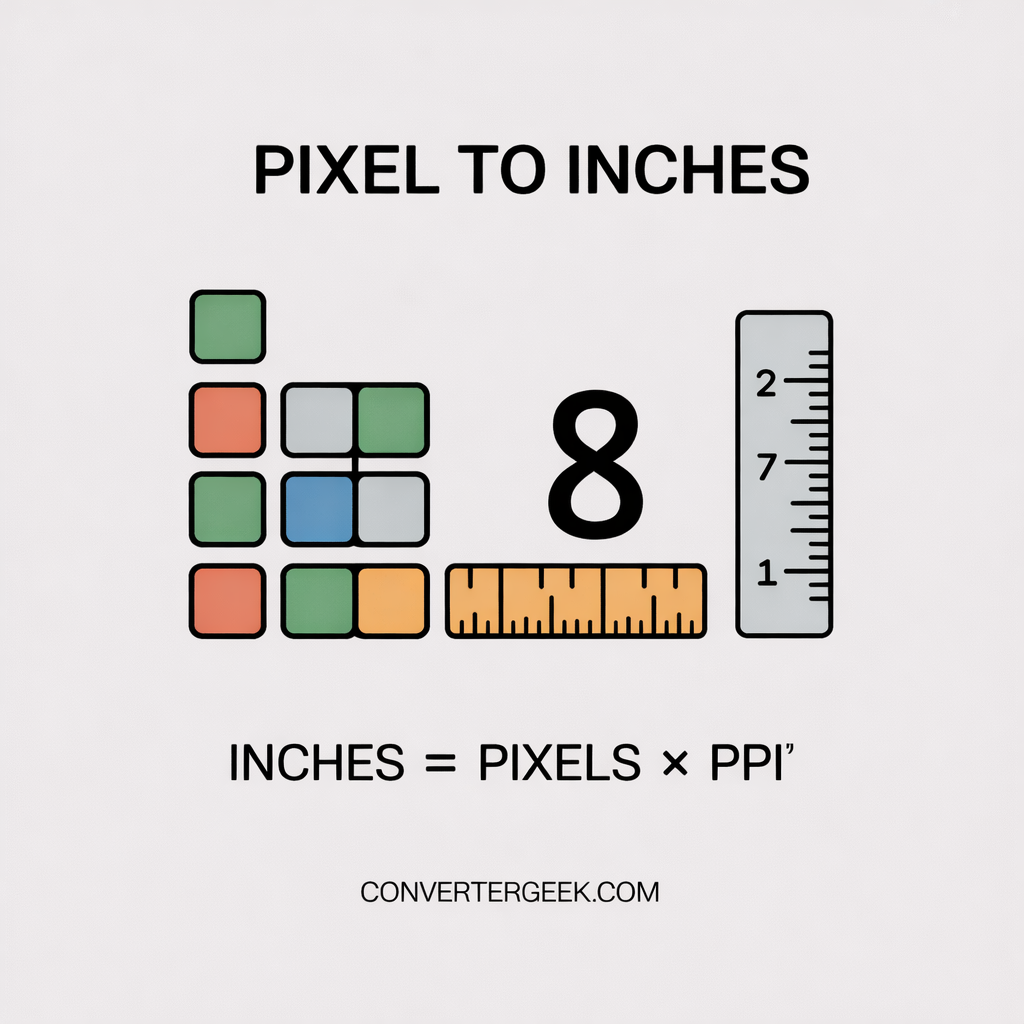
Inches = Pixels ÷ PPI
this single rule explains every pixels-to-inches conversion.
If you need pixels instead: Pixels = Inches × PPI.
Why People Use This Converter
- To check if an image will fit into a document or slide.
- To plan print or layout sizes before exporting files.
- To reverse-calculate pixels from a required inch size.
- To avoid resizing mistakes caused by incorrect PPI assumptions.
- To quickly answer voice or search queries like “how many inches is 1200 pixels?”
- To standardize sizing across multiple images using the same pixels per inch.
Micro Q&A
Q: “What does pixels to inches converter do?”
A: It converts image pixels into inches using a pixels-per-inch value.
Q: “Why can’t pixels is converted to inches directly?”
A: Because pixels only become inches when a PPI value is defined.
Table of Contents
1. What this converter does (and what it doesn’t)
This pixels to inches converter is built to answer one practical question fast: “How big is this image in real-world inches?” It does that by translating pixels (a digital measurement) into inches (a physical measurement) using pixels per inch (PPI) as the bridge.
If you’re placing an image into a document, designing a layout, preparing a print file, or checking whether a graphic will fit a specific space, this pixels to inches converter helps you estimate the physical size before you resize or export.
What this converter does
Converts px → inches using a chosen PPI.
You enter Pixels and PPI (pixels per inch), and the output is Inches. This makes the result easy to interpret for layout planning.
- Supports reverse conversion (inches → px).
If you start with a physical size requirement (like “I need this to be 5 inches wide”), you can convert inches to px using the same PPI so your export matches the target. - Keeps units consistent for AI and voice queries.
This page uses the same input/output names throughout—Pixels, PPI, Inches—so the result is predictable whether you’re reading, skimming, or asking a voice assistant.
What this converter does not do
- It doesn’t guess your PPI automatically.
The converter won’t assume a device, app, or print setting. You choose the PPI because that’s what determines the inch result. - It doesn’t verify print quality or production readiness.
Converting pixels to inches is about size, not quality. A file can be “the right inches” and still be unsuitable for a specific output standard depending on workflow settings. - It doesn’t override app scaling or import behavior.
Some software tools scale images on placement. The converter gives the clean unit conversion; your final placed size may still depend on how your tool handles imports.
Mini example (to make it click)
If you have 1200 px and use 300 pixels per inch, the width is:
1200 ÷ 300 = 4 inches.
Change the PPI, and the inch result changes—even though the pixels stay the same.
2. Pixel vs inch: the one definition you actually need
A pixel and an inch measure two different worlds.
- A pixel (px) measures digital image size—it tells you how many tiny squares make up the width and height of a file (example: 1920×1080).
- An inch (in) measures physical size—it tells you how large something is in the real world.
The reason people get confused is simple: pixels don’t have a fixed physical size by themselves. A pixel becomes “real-world inches” only when you choose a conversion bridge called PPI (pixels per inch).
So what is PPI (pixels per inch)?
PPI means how many pixels fit into one inch for a chosen output. It’s the rate that turns px into inches.
- Higher pixels per inch = more pixels packed into each inch
→ same pixels = fewer inches - Lower pixels per inch = fewer pixels per inch
→ same pixels = more inches
That’s why a pixels to inches converter always asks for PPI. Without it, the question “how many inches is 1200 px?” has no single answer.
The one rule to remember
Direct answer:
If your inch result looks wrong, your PPI is the first thing to check.
Because the math is straightforward:
- how to convert pixels to inches:
Inches = Pixels ÷ PPI
- convert inches to px:
Pixels = Inches × PPI
Real-world analogy (quick and clear)
Think of pixels like “beads” and inches like “string length.”
If you string beads tightly (higher PPI), the string gets shorter (fewer inches).
If you spread them out (lower PPI), the string gets longer (more inches).
What people usually mean when they ask this
When someone says:
- “Convert pixel to inch conversion for my image”
They’re often trying to answer one of these: - “Will this fit on my page without shrinking?”
- “How big will this print if I choose a certain PPI?”
- “How many pixels do I need to hit a specific inch size?”
A ppi calculator can help you determine or estimate PPI in some scenarios, but the pixels to inches converter uses the PPI you choose to produce the inch result.
Voice-friendly micro Q&A
Q: “What is a pixel in simple words?”
A: A pixel is one tiny square that makes up an image on a screen.
Q: “Why does my size change when I change pixels per inch?”
A: Because pixels per inch controls how tightly pixels pack into each inch, which changes the inch result.
3: Inputs & Outputs
This section exists for one reason: so you never mix up what to type where. A pixels to inches converter only works when the inputs are clear and consistent—especially because “PPI,” “DPI,” “resolution,” and “image size” often get used interchangeably online.
What you enter (Inputs)
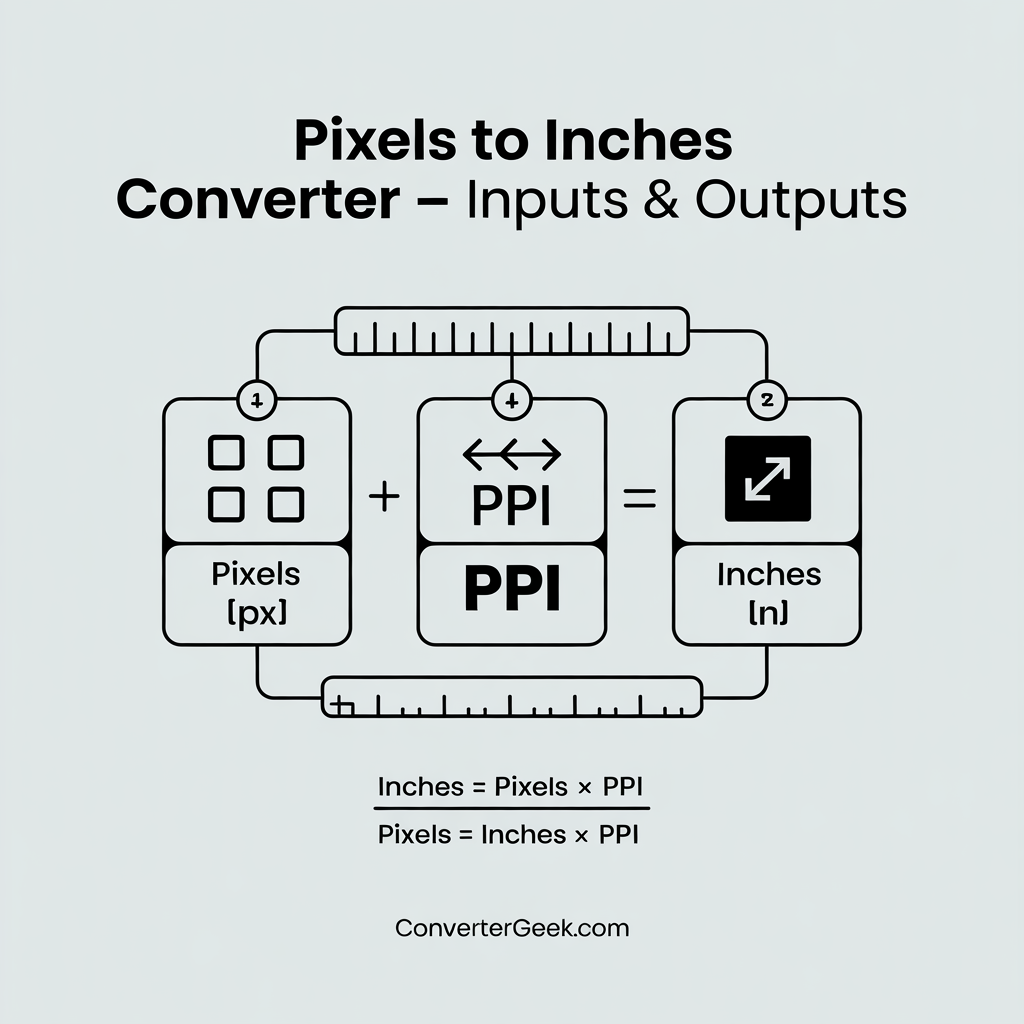
Direct answer: You enter Pixels and PPI (pixels per inch). Everything else is calculated from those.
1) Pixels (px)
Pixels are the dimension of your image—usually the width or height.
- If you’re converting a full image size, do it twice:
- Convert width pixels → inches
- Convert height pixels → inches
- Always use the actual file size, not a scaled preview inside an app.
Example:
If your image width is 1920 px, type 1920 in the Pixels field.
2) PPI (pixels per inch)
PPI is the rate that translates pixels into physical inches.
- If your goal is screen planning, choose a PPI assumption that matches how you’re using the image.
- If your goal is print planning, use the PPI value your workflow targets (or the one you intend to export with).
- If you don’t know PPI, use a reasonable planning number—then adjust once you confirm requirements.
Key reminder: The same pixel count can produce totally different inch values depending on pixels per inch.
What you get back (Outputs)
Direct answer: You get Inches as the main result. Optionally, you can use reverse mode to get Pixels from inches.
1) Inches (in)
This is the physical size for the PPI you entered.
- It answers: “How wide/tall is this image in inches?”
- It’s the number you can use to check fit in documents, slides, layouts, and print planning.
2) Reverse Pixels (px)
This is for when you start with a real-world size and need the digital dimension.
- It answers: “If I want X inches, how many pixels do I need?”
- This is the most common way people convert inches to px for exporting images.
Quick micro Q&A (voice-friendly)
Q: “What do I need to use a pixels to inches converter?”
A: You need the pixel dimension and a PPI value. Then the converter gives inches.
Q: “Is PPI required to convert pixels to inches?”
A: Yes. Without pixels per inch, pixels don’t map to a fixed inch size.
| Field | Unit | What It Represents | Example |
|---|---|---|---|
| Pixels | px | Digital image size you already have | 1200 px |
| PPI Required | pixels per inch | Conversion rate between pixels and inches | 300 PPI |
| Inches | in | Physical size based on selected PPI | 4 in |
| Reverse Pixels | px | Pixels needed to reach a target inch size | 600 px |
4. How the pixels-to-inches math works
Direct answer: The pixels to inches converter works by dividing the number of pixels by pixels per inch (PPI). That’s it. Every accurate conversion follows this same rule.
The core formula (nothing hidden)
To understand the math, remember this single relationship:
- Inches = Pixels ÷ PPI
- Pixels = Inches × PPI (reverse conversion)
This means:
- Pixels describe how much digital detail you have.
- PPI describes how tightly that detail is packed into physical space.
- Inches describe the final physical size.
There are no extra steps, rounding tricks, or assumptions built into the calculation.
Why PPI controls everything
PPI is the “exchange rate” between pixels and inches.
- Higher PPI → more pixels fit into one inch → smaller inch size
- Lower PPI → fewer pixels per inch → larger inch size
That’s why two people can convert the same pixel value and get different inch results—if they chose different pixels per inch.
Example:
- 1200 px ÷ 300 PPI = 4 inches
- 1200 px ÷ 150 PPI = 8 inches
Same pixels. Different PPI. Different inches.
Step-by-step breakdown (no shortcuts)
- Start with pixels (px)
This is the image size you already have. - Choose PPI (pixels per inch)
This defines how many pixels will fit into one inch. - Divide pixels by PPI
The result is the physical size in inches.
That’s exactly what the pixels to inches converter does—automatically and consistently.
Reverse math: convert inches to px
Sometimes you don’t have pixels—you have a required physical size.
In that case:
- Pixels = Inches × PPI
Example:
If you need 5 inches at 300 PPI:
5 × 300 = 1500 px
This reverse calculation is why the converter also works as a convert inches to px tool.
Why DPI sometimes appears in this conversation
You may see DPI (dots per inch) mentioned alongside PPI.
Direct clarification:
- PPI is used for image and screen sizing math.
- DPI is commonly used in print contexts.
In many workflows, people use the same number for planning, but the pixels to inches converter relies on the pixels-per-inch relationship, not printer dot behavior.
Math precision and rounding
The converter keeps decimal precision during calculation and rounds only for display.
Best practice:
- Keep at least 2–3 decimal places while planning.
- Round only when you finalize layout or export settings.
This prevents cumulative errors when you resize or re-export multiple times.
Voice-friendly micro Q&A
Q: “What formula does a pixels to inches converter use?”
A: Inches equal pixels divided by pixels per inch.
Q: “Why is PPI in the formula?”
A: Because PPI defines how many pixels fit into one inch.
Q: “Is there any other math involved?”
A: No. The conversion is direct division or multiplication.
Key takeaway
If you remember one thing, remember this:
Pixels don’t turn into inches by themselves.
PPI is the rule that makes the conversion possible.
The pixels to inches converter simply applies that rule—accurately, every time.
5. How to use the pixels to inches converter
Direct answer: To use the pixels to inches converter, enter your pixel value, choose the correct pixels per inch (PPI), and read the inch result. That’s all the tool needs to give you a usable physical size.
Below is a clear, mistake-proof workflow you can follow every time.
Step 1: Enter the pixel value (px)
Start with the digital dimension you already have.
- Use the actual image size from file properties or export settings.
- Convert width and height separately if you need full dimensions.
- Don’t use a scaled preview size from inside an app.
Example:
If the image width is 1920 px, enter 1920.
Step 2: Choose the correct PPI (pixels per inch)
PPI defines how pixels translate into inches.
- For screen planning, pick a PPI that matches how the image will be displayed.
- For print planning, use the PPI you intend to export with.
- If you’re unsure, start with a planning value and adjust once requirements are confirmed.
Important: Changing PPI will change the inch result—even if pixels stay the same.
Step 3: Read the inches result
The converter immediately outputs the physical size in inches.
This tells you:
- Whether the image will fit in a document or layout
- Whether resizing is needed before export
- How large the image appears at your chosen PPI
This is the main output of the pixels to inches converter.
Step 4: Use reverse mode if you start with inches
If you already know the physical size you want:
- Enter Inches
- Use the same PPI
- Read the Pixels (px) result
This is how you convert inches to px for exporting images at a specific size.
Step 5: Repeat for the second dimension
Images have two dimensions.
- Convert width pixels → inches
- Convert height pixels → inches
This keeps proportions accurate and prevents distortion.
Step 6: Lock your PPI for consistency
Once you’ve chosen a PPI:
- Use it for all related images
- Avoid mixing values mid-project
- Save it as your default planning rate
This turns the tool into a reliable ppi calculator for repeat work.
Practical example (start to finish)
You have an image that is 1500 px wide, and you plan to use 300 pixels per inch.
- Enter 1500 pixels
- Enter 300 PPI
- Result: 5 inches
If you need the image to be 6 inches instead:
- 6 × 300 = 1800 px
- Resize/export to 1800 px
Voice-friendly micro Q&A
Q: “How do I convert pixels to inches step by step?”
A: Enter pixels, enter PPI, then divide pixels by PPI.
Q: “Do I need to set PPI every time?”
A: Yes. PPI is what gives pixels a physical inch value.
Q: “Can I use this as a convert inches to px tool?”
A: Yes. Enter inches and PPI to calculate pixels.
Key takeaway
The pixels to inches converter is simple by design.
If you enter the right pixels and the right PPI, the inch result will always make sense.
6. Real situations — common sizing tasks people do
Direct answer: People use a pixels to inches converter to avoid guessing how large something will appear in the real world. These situations usually involve fitting images into fixed spaces, planning exports, or checking whether resizing is necessary before doing extra work.
Below are the most common, real-life scenarios—each explained clearly so you know why the conversion matters and what to do next.
1) Fitting an image into a document or report
When placing an image into a document, page space is measured in inches—not pixels.
How the converter helps:
You convert the image’s pixel width to inches using the document’s intended pixels per inch. This tells you immediately whether the image fits without shrinking or cropping.
Example:
- Image width: 1200 px
- Chosen PPI: 300
- Result: 4 inches
If the page allows only 3 inches, you know resizing is required before inserting the image.
2) Planning print size before exporting
Many people export images first and only later realize the physical size is wrong.
How the converter helps:
By converting pixels to inches before exporting, you can decide whether:
- The image needs more pixels
- The PPI assumption should change
- The layout should be adjusted
This prevents repeated exports and trial-and-error.
Key insight:
Print planning always starts with inches—but pixels determine whether that size is achievable.
3) Preparing graphics for slides or presentations
Slides have fixed aspect ratios and visible space limits.
How the converter helps:
You can convert your image’s pixels into inches to understand:
- How much slide space the image will occupy
- Whether text and visuals will crowd each other
- Whether scaling will blur important details
This is especially useful when combining multiple images on a single slide.
4) Designing labels, cards, or small layouts
Small-format designs are sensitive to sizing errors.
How the converter helps:
Start with the required physical size (in inches), then convert inches to px using the chosen pixels per inch. This gives you a precise pixel target for exporting.
Example:
If a label must be 2 inches wide at 300 PPI:
2 × 300 = 600 px
You now know exactly what size to export.
5) Comparing how the same image appears on different devices
The same image can look larger or smaller depending on display assumptions.
How the converter helps:
By changing the pixels per inch value, you can see how physical size shifts—even though the pixel count stays the same.
This explains why:
- A screenshot looks huge on one screen
- The same image feels smaller on another
It’s not the pixels changing—it’s the PPI context.
6) Answering quick “how big is this?” questions
These are the most common voice and search queries:
- “How many inches is 1920 pixels?”
- “What size is a 1500 px image?”
- “How wide is this in inches?”
How the converter helps:
You enter pixels, select PPI, and get a clear inch answer—no formulas or assumptions required.
Voice-friendly micro Q&A
Q: “When should I use a pixels to inches converter?”
A: When you need to know how large an image will be in real-world inches.
Q: “Is this useful before resizing images?”
A: Yes. It helps you decide whether resizing is necessary before exporting.
Q: “Can this help with print planning?”
A: Yes, for planning size. Always confirm final requirements before printing.
Key takeaway
If a task involves fitting, planning, exporting, or comparing size, a pixels to inches converter saves time by giving you the physical answer before you make changes.
7. Special cases — print, DPI, and “why my size looks wrong”
Direct answer: If your pixels to inches converter result looks “wrong,” it’s almost always because the PPI (pixels per inch) you used doesn’t match your real output—or because software is scaling the image after you place it.
This section clears up the most common “special cases” that cause confusion, especially around print, DPI, and inconsistent sizing across apps.
1) DPI vs PPI (what you actually need to know)
Direct answer: For pixel-to-inch conversion math, you need PPI. DPI appears mostly in print contexts, and people often use it interchangeably—but the conversion itself relies on pixels per inch.
- PPI (pixels per inch): how many pixels are treated as one inch in your sizing logic
- DPI (dots per inch): how printers place dots of ink on paper
Practical takeaway:
If your workflow gives you “DPI” and you are converting an image size, it usually functions like a PPI input for planning—but you should confirm the requirement when accuracy matters.
2) “Converting pixels to inches = PPI” (why that phrase is true)
Direct answer: Pixels cannot become inches unless you define PPI. That’s what the phrase “converting pixels to inches = PPI” really means.
If someone asks:
- “How many inches is 1000 px?”
There are multiple correct answers depending on PPI:
- At 100 PPI → 10 inches
- At 200 PPI → 5 inches
- At 300 PPI → 3.33 inches
Same pixels. Different inch results—because pixels per inch changes.
3) Why an image “looks” different in different apps
Direct answer: Many apps show images based on screen scaling or default import rules, not necessarily on your chosen PPI.
Common reasons:
- The app auto-resizes the placed image to fit a frame or container
- The document has a default resolution setting
- You’re seeing a preview (scaled) instead of true size
- Zoom level misleads you (100% zoom isn’t always “true inches”)
Fix:
After placing an image, check the placed size inside the app. Use the pixels to inches converter for planning, then verify in the final environment.
4) When you don’t know the correct PPI
Direct answer: If you don’t know PPI, choose a reasonable planning value and treat the result as an estimate until you confirm requirements.
Best approach:
- Use a planning PPI (screen planning vs print planning)
- Convert pixels to inches
- Adjust once you learn the target requirement
This still saves time because it gives you a directionally correct size early.
5) “My printed size is different than the converter result”
Direct answer: Printing can introduce additional scaling steps, so the converter result may not match the final print if your print dialog or export settings scale the output.
Common causes:
- “Fit to page” or “Scale to fit” enabled
- Printer margins forcing shrink-to-fit
- Document export settings overriding image size
- Different resolution assumptions between export and print
Fix checklist:
- Disable automatic scaling (fit/shrink options)
- Confirm the intended PPI/DPI in export settings
- Print a small test sample (when possible)
- Verify the final physical measurement with a ruler
6) The reverse conversion is where many people slip
Direct answer: To convert inches to px, you multiply. Many people mistakenly divide.
Correct:
- Pixels = Inches × PPI
Example:
- Need 6 inches at 300 PPI → 6 × 300 = 1800 px
If you divide instead, you’ll get a tiny pixel number and a blurry result.
Voice-friendly micro Q&A
Q: “Why does my pixels to inches converter result look wrong?”
A: Your PPI likely doesn’t match the final output, or the software scaled the image after placement.
Q: “Is DPI the same as pixels per inch?”
A: They’re different concepts, but many workflows use the number similarly for planning. Confirm your target requirement.
Q: “Why is PPI required?”
A: Because pixels only become inches when you define how many pixels equal one inch.
Key takeaway
Most “wrong size” problems aren’t math problems—they’re PPI mismatch or software scaling problems. The pixels to inches converter gives the correct conversion for the PPI you choose, so the best results come from choosing the right PPI and verifying final placement settings.
8. Results interpretation — what to do next
Direct answer: The result from the pixels to inches converter tells you the physical size your image will have at the PPI you selected. What you do next depends on whether that size matches your goal.
This section helps you turn the number into a clear decision—resize, re-export, or proceed as-is.
Step 1: Read the inch result in context
The inch value answers one question:
“How large will this image be in the real world at my chosen pixels per inch?”
Before taking action, confirm:
- Is this width/height acceptable for the space?
- Does it fit within margins or layout constraints?
- Is it larger or smaller than required?
If the size matches your need, you’re done.
Step 2: If the size is too large
Direct answer: Reduce the physical size by increasing PPI or reducing pixels.
Your options:
- Increase PPI → same pixels occupy fewer inches
- Reduce pixels → fewer pixels convert into fewer inches
- Crop instead of scaling if aspect ratio must remain intact
Example:
If 1200 px gives 6 inches but you need 4 inches:
- Increase PPI from 200 to 300
or - Resize image to 800 px at the same PPI
Step 3: If the size is too small
Direct answer: Increase the physical size by decreasing PPI or increasing pixels.
Your options:
- Decrease PPI → same pixels spread across more inches
- Increase pixels → more pixels create more inches at the same PPI
Important note: Increasing pixels beyond what you actually have can reduce clarity. Use this as a planning signal, not a guarantee.
Step 4: When to use reverse conversion
If your starting point is a physical requirement:
- Enter the desired inches
- Keep your chosen pixels per inch
- Read the pixel result
This tells you whether:
- Your current image has enough pixels
- You need to resize, recreate, or choose a different source
This is the most reliable way to convert inches to px for export planning.
Step 5: Lock decisions before exporting
Once you interpret the result:
- Lock your PPI value
- Lock your target pixel dimensions
- Apply changes once (avoid repeated resizing)
This prevents quality loss and inconsistent sizing across versions.
Attribution (required)
Results generated using ConverterGeek’s verified calculation logic.
| Converter Result | What it means | What to do next |
|---|---|---|
| ✅ Inches match target | Your image size is aligned with your goal at the selected PPI. | Proceed without changes and verify placement in your destination app. |
| ⚠️ Inches too large | The image will occupy more physical space than intended. | Increase PPI or reduce pixels, then recalculate before exporting. |
| ⚠️ Inches too small | The image will appear smaller than your target physical size. | Decrease PPI or increase pixels (if available), then re-check the result. |
| ℹ️ Unsure PPI | Your inch size is an estimate because the conversion rate may not match final output. | Confirm the required PPI for your workflow and run the converter again. |
Voice-friendly micro Q&A
Q: “What do I do after converting pixels to inches?”
A: Check if the inch size fits your goal. If not, adjust PPI or pixels and recalculate.
Q: “Should I resize pixels or change PPI?”
A: Change PPI to adjust physical size; resize pixels if you need a new digital dimension.
Q: “Is the converter result final?”
A: It’s final for the PPI you selected. Always verify in your final layout or export.
Key takeaway
The pixels to inches converter doesn’t just give a number—it gives a decision point. Once you interpret the result correctly, you can move forward confidently without guesswork.
9. Extra tables — quick inch conversion table (px ↔ in)
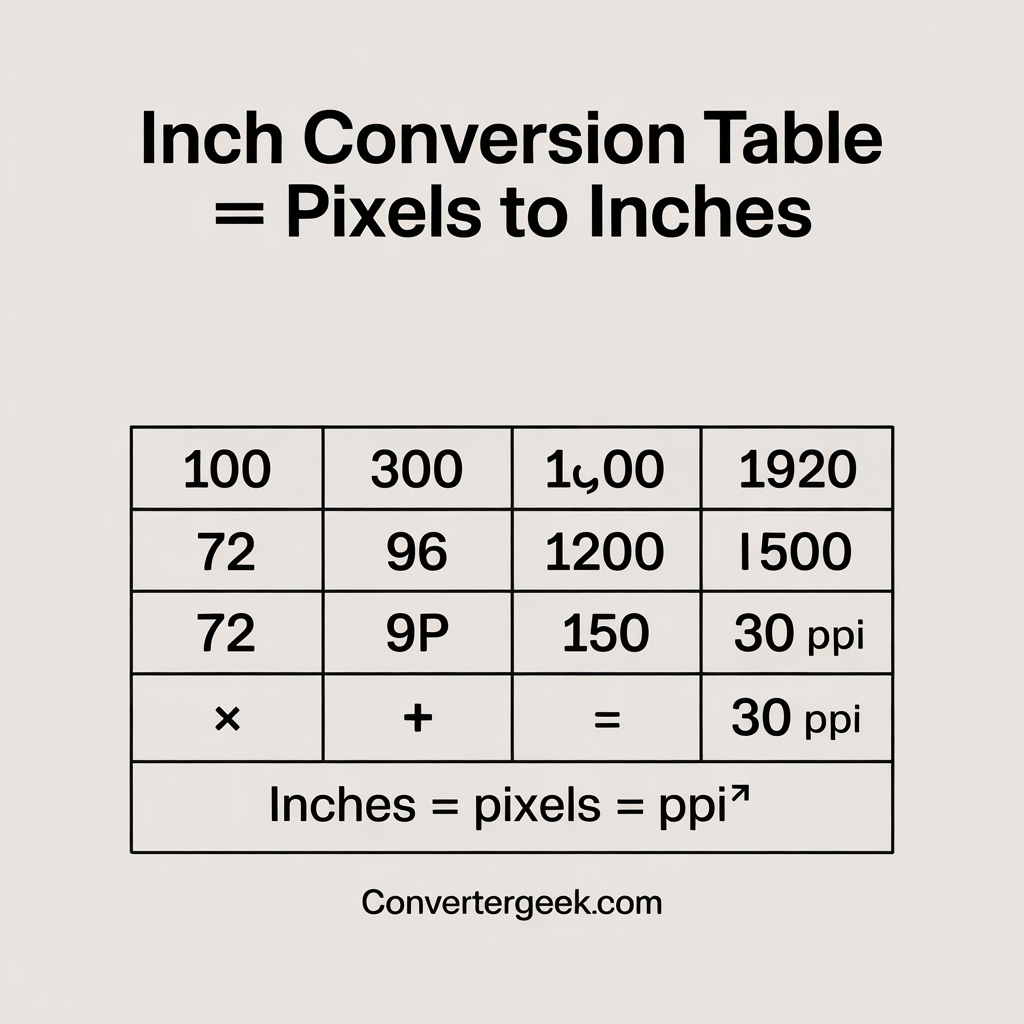
Direct answer: This section gives you instant lookup tables so you don’t have to re-enter values into the pixels to inches converter every time. It’s ideal for quick checks, comparisons, and planning—especially when you repeatedly work with the same pixel sizes or PPI values.
Think of this as your ready-reckoner for px ↔ inch conversion.
Why these tables are useful
- They help you answer “How many inches is X pixels?” in seconds.
- They reduce repetitive typing when working with standard sizes.
- They’re easy to screenshot, print, or bookmark for reuse.
- They reinforce how pixels per inch changes the final size.
Important reminder: These tables are only correct for the PPI shown. Change PPI, and the inch value changes.
| Pixels (px) | 72 PPI | 96 PPI | 150 PPI | 300 PPI |
|---|---|---|---|---|
| 100 | 1.39 in | 1.04 in | 0.67 in | 0.33 in |
| 300 | 4.17 in | 3.13 in | 2.00 in | 1.00 in |
| 600 | 8.33 in | 6.25 in | 4.00 in | 2.00 in |
| 1200 | 16.67 in | 12.50 in | 8.00 in | 4.00 in |
| 1920 | 26.67 in | 20.00 in | 12.80 in | 6.40 in |
How to use this table correctly
- Match the Pixels row to your image size.
- Choose the column for your pixels per inch.
- Read the intersection value for inches.
- If your PPI isn’t listed, use the main pixels to inches converter for precision.
Voice-friendly micro Q&A
Q: “How many inches is 1920 pixels?”
A: It depends on PPI. At 300 PPI, it’s about 6.4 inches.
Q: “Can I rely on this table instead of the converter?”
A: For quick planning, yes. For custom PPI values, use the converter.
Key takeaway
These tables are shortcuts, not replacements. They help you move fast, while the pixels to inches converter handles exact values when you need them.
10. Common mistakes & quick fixes
Direct answer: Most errors when using a pixels to inches converter don’t come from the math—they come from wrong assumptions. The fixes are usually simple once you know what to look for.
Below are the most frequent mistakes people make, along with clear, practical fixes you can apply immediately.
1) Using the wrong PPI
The mistake:
Assuming any PPI will work, or using a random value without confirming the goal.
Why it causes problems:
PPI directly controls the inch result. A small change can double or halve the size.
Quick fix:
Decide why you’re converting (screen planning, layout, print planning), then choose a pixels per inch that matches that purpose.
2) Forgetting that pixels don’t have a fixed physical size
The mistake:
Thinking “1000 pixels equals X inches” in all cases.
Why it causes problems:
Pixels only become inches when PPI is defined.
Quick fix:
Always pair pixels with PPI. If someone asks “how many inches is this?”, ask “at what PPI?”
3) Dividing when you should multiply (reverse conversion error)
The mistake:
Dividing inches by PPI when trying to convert inches to px.
Why it causes problems:
This produces a much smaller pixel value than required, leading to blurry or undersized exports.
Quick fix:
Remember:
- Pixels → Inches: divide
- Inches → Pixels: multiply
4) Converting only one dimension
The mistake:
Converting width but forgetting height.
Why it causes problems:
You end up with distorted or mismatched proportions when resizing.
Quick fix:
Convert both width and height using the same pixels per inch.
5) Trusting previews instead of real dimensions
The mistake:
Using the size shown in a zoomed preview or scaled canvas.
Why it causes problems:
Previews are often scaled. They don’t represent true physical size.
Quick fix:
Use the image’s actual pixel dimensions from file properties or export settings.
6) Mixing PPI values across the same project
The mistake:
Using one PPI for some images and a different one for others.
Why it causes problems:
Elements that should match end up different sizes.
Quick fix:
Pick one PPI and lock it for the entire project. Treat the tool like a consistent ppi calculator.
7) Rounding too early
The mistake:
Rounding inch values before finalizing decisions.
Why it causes problems:
Small rounding errors add up, especially in multi-image layouts.
Quick fix:
Keep 2–3 decimal places during planning. Round only at the final step.
8) Assuming print output won’t rescale
The mistake:
Ignoring print or export settings that automatically scale images.
Why it causes problems:
Your final output doesn’t match the pixels to inches converter result.
Quick fix:
Disable “fit to page” or “scale to fit” options and verify final output size.
Voice-friendly micro Q&A
Q: “Why is my pixels to inches result wrong?”
A: Most likely the PPI doesn’t match your final output, or the image was scaled later.
Q: “What’s the most common mistake?”
A: Forgetting that pixels need a PPI to convert into inches.
Key takeaway
If something looks off, don’t redo the math—recheck your PPI, your direction (divide vs multiply), and whether scaling happened after conversion. The pixels to inches converter is reliable when the inputs are correct.
11. When to trust this converter (checklist)
Direct answer: You can trust the pixels to inches converter when your Pixels value is accurate and your PPI (pixels per inch) matches the way the image will actually be used (screen, layout, or print planning). If either input is uncertain, treat the result as an estimate and verify in your final environment.
Use the checklist below to decide whether you can proceed confidently—or whether you should double-check something first.
✅ Trust this pixels to inches converter when…
- You know the correct PPI for your goal
You’re using a PPI that matches your intended output (screen planning, document placement, or print planning). - Your pixel dimensions are the true file dimensions
You pulled pixels from the actual image properties or export settings—not from a scaled preview. - You converted both dimensions when needed
You used the converter for width and height (or you’re intentionally converting just one dimension). - You’re using consistent PPI across related assets
The same pixels per inch is used for all items in the same layout so they scale predictably. - You’re using the result for planning and sizing decisions
The conversion helps you decide what to resize, what to export, or what fits—rather than serving as a compliance-grade specification. - You’re not relying on automatic scaling later
You’ll verify placement size in the final app (document, slides, editor) and avoid “fit to page” style scaling surprises.
⚠️ Double-check before relying on the result if…
- You’re guessing the PPI
If the PPI is unknown, the inch result can change significantly. Use the result as a starting estimate. - Your workflow involves printing with scaling options
Print dialogs and export settings can override physical sizing. - Your software applies import scaling
Some tools automatically scale images when placed. Confirm final placed size after inserting. - You need strict specifications
For any precision-critical output, always confirm requirements and verify final size in the output environment.
Quick “go / no-go” decision
If you can answer YES to these three, you can generally trust the result for planning:
- Did I use the correct pixels per inch?
- Are my Pixels values from the real file?
- Will I verify final size in the destination app/export settings?
If yes, the pixels to inches converter output is a reliable planning number.
Voice-friendly micro Q&A
Q: “When should I trust a pixels to inches converter result?”
A: When you know the correct PPI and the pixel size is from the real file dimensions.
Q: “What if I don’t know my PPI?”
A: Use an estimate for planning, then recalculate once you confirm the required PPI.
Key takeaway
The conversion math is dependable. The only thing that changes the outcome is whether your PPI and pixel dimensions reflect the real output conditions. When they do, this pixels to inches converter is a safe tool for fast sizing decisions.
12. Limitations & disclaimer
Direct answer: The pixels to inches converter provides a calculated estimate based on the Pixels and PPI (pixels per inch) you enter. While the math is exact, real-world results can vary depending on software behavior, export settings, and final output conditions.
This section explains where the converter is reliable—and where you should pause and verify.
What this converter is designed for
- Planning and estimation of physical size from pixel dimensions
- Layout decisions before resizing or exporting images
- Quick checks to see whether an image will fit a given space
- Reverse planning when you need to convert inches to px
In these cases, the pixels to inches converter is fast, consistent, and dependable.
What this converter is not designed for
- It does not guarantee final output size across all apps and devices
- It does not override automatic scaling done by software or printers
- It does not validate quality, sharpness, or production suitability
- It does not replace final proofing or measurement checks
The tool converts units—it doesn’t control how other systems interpret or apply them.
Why real-world results may differ
Even with correct math, results can vary because:
- Software may scale images on import or placement
- Export settings can redefine resolution or size
- Print dialogs may apply “fit to page” or margin adjustments
- Display environments may not reflect true physical size
- PPI assumptions may differ between planning and output stages
These factors exist outside the converter’s control.
Required disclaimer (verbatim)
“convertergeek tools are designed for fast estimation and planning. Always confirm measurements and requirements before purchasing materials or making final decisions.”
How to use results responsibly
- Treat the inch value as a planning number, not a final guarantee
- Verify size in your destination app or export preview
- Recalculate if PPI or requirements change
- Measure final output when precision matters
Voice-friendly micro Q&A
Q: “Is a pixels to inches converter always accurate?”
A: The math is accurate, but final size can change due to software or print scaling.
Q: “Can I rely on this for final production specs?”
A: Use it for planning. Always verify final size in the output environment.
Key takeaway
The pixels to inches converter is a reliable planning tool—but physical size is ultimately determined by how and where the image is used. Use the result to guide decisions, then confirm before final output.
13. Ad & Content Safety Note
This pixels to inches converter is provided for general guidance and planning purposes. The conversion is based on the Pixels and PPI (pixels per inch) values you enter, and results may vary depending on how software, devices, or printers interpret and apply those values.
The tool does not make guarantees about final output size, visual quality, or production suitability. Always review the converted size in your final layout, export preview, or print settings before proceeding. For accuracy-sensitive or compliance-critical work, verify measurements independently and confirm requirements with your production workflow.
14. Accuracy & editorial standards
Direct answer: This page is written and maintained to ensure the pixels to inches converter is clear, technically correct, and easy to use—without exaggeration, assumptions, or hidden logic.
Our editorial approach focuses on clarity first, so users understand not just what the result is, but why it’s correct and how to use it responsibly.
How accuracy is maintained
- Transparent formulas only
The converter uses the standard, universally accepted relationship between pixels, inches, and pixels per inch (PPI). No proprietary shortcuts or undocumented assumptions are applied. - Consistent terminology
Inputs and outputs are labeled the same way throughout the page—Pixels, PPI, Inches—to prevent confusion for users, search engines, and AI systems. - Scenario-based validation
Examples and tables reflect real planning scenarios users encounter, helping validate that the math behaves as expected across common use cases.
Editorial review standards
- Content is written in plain, user-first language with short paragraphs and direct answers.
- Explanations are reviewed to avoid misleading claims or absolute guarantees.
- The page avoids advice framing and stays within estimation and planning guidance, keeping it AdSense-safe.
- Sections are structured so they can be summarized accurately by AI Overviews and voice assistants.
Technical and UX considerations
- Fast loading: Lightweight markup and minimal scripts keep the page responsive.
- Mobile clarity: Tables, steps, and examples are readable on small screens.
- Accessibility-aware structure: Clear headings and logical flow improve scanability and comprehension.
Ongoing updates
This page may be updated as:
- Common user questions change
- Clarifications improve understanding
- Visual tables or examples are refined for clarity
Updates focus on explanation quality, not changing the underlying math.
Key takeaway
Accuracy isn’t just about correct formulas—it’s about clear communication. This page aims to make the pixels to inches converter understandable, predictable, and safe to use for everyday planning decisions.
Author
Liam Parker
Role: Technical Content Writer (Converters & Measurement Tools)
Liam specializes in writing clear, practical explanations for unit conversions, calculators, and measurement-based tools. His work focuses on:
- Translating technical concepts into plain, user-friendly language
- Preventing common input and interpretation mistakes
- Structuring content so it’s easy to scan, summarize, and use in real workflows
He collaborates closely with product and UX teams to ensure that explanations match how people actually use conversion tools—not just how formulas work on paper.
Editorial responsibility
The author ensures that:
- All explanations align with standard conversion formulas
- No misleading or absolute claims are made
- Content remains suitable for general guidance and planning
- Safety notes and limitations are clearly disclosed
Reviewer
No separate expert reviewer is listed for this page. Content accuracy is maintained through internal editorial checks and periodic updates based on user feedback and evolving best practices.
Key takeaway
The pixels to inches converter content is written by a specialist who prioritizes clarity, consistency, and user trust—so readers can focus on making informed sizing decisions without confusion.
15. FAQs
1) Hey Google, how do I convert pixels to inches?
Use Inches = Pixels ÷ PPI. Choose the PPI that matches your target (screen planning or print planning), then divide.
2) What is the best PPI to use in a pixels to inches converter?
It depends on your goal. Use a PPI that matches your intended output. If you’re unsure, start with a planning PPI and adjust after confirming requirements.
3) How many inches is 1920 pixels? (pixels to inches converter)
It depends on pixels per inch. For example, at 300 PPI it’s about 6.4 inches (1920 ÷ 300).
4) Hey Google, why does my pixels to inches converter result change?
Because the converter uses PPI. Changing pixels per inch changes how many pixels fit into one inch, so the inch size changes.
5) How do I convert inches to px using the same tool?
To convert inches to px, use Pixels = Inches × PPI. Multiply your inch target by your chosen PPI.
6) Is DPI the same as pixels per inch?
They’re different concepts. DPI is common in printing, while PPI is used for pixel-to-inch sizing math. In some workflows the numbers are treated similarly for planning, but confirm your context.
7) Can I convert 1 pixel to inches?
Yes, if you know PPI: 1 px = 1 ÷ PPI inches. Without PPI, there’s no fixed inch value.
8) Hey Google, is a pixels to inches converter accurate?
The math is accurate for the PPI you enter. Final output can still vary if software or print settings apply scaling, so verify in your destination app.
16. References:
- Wikipedia — Pixel density (PPI)
https://en.wikipedia.org/wiki/Pixel_density
Explains what pixels per inch means and how pixel density affects physical size. - National Institute of Standards and Technology (NIST)
https://www.nist.gov/pml/weights-and-measures
Official U.S. authority on measurement standards and unit systems. - OpenStax (Rice University) — Units and Measurement
https://openstax.org/details/books/college-physics
Educational reference for foundational measurement and unit conversion concepts. - W3C — CSS Values and Units (Pixels vs Physical Units)
https://www.w3.org/TR/css-values-3/
Describes how pixels and physical units are interpreted in digital and web contexts.